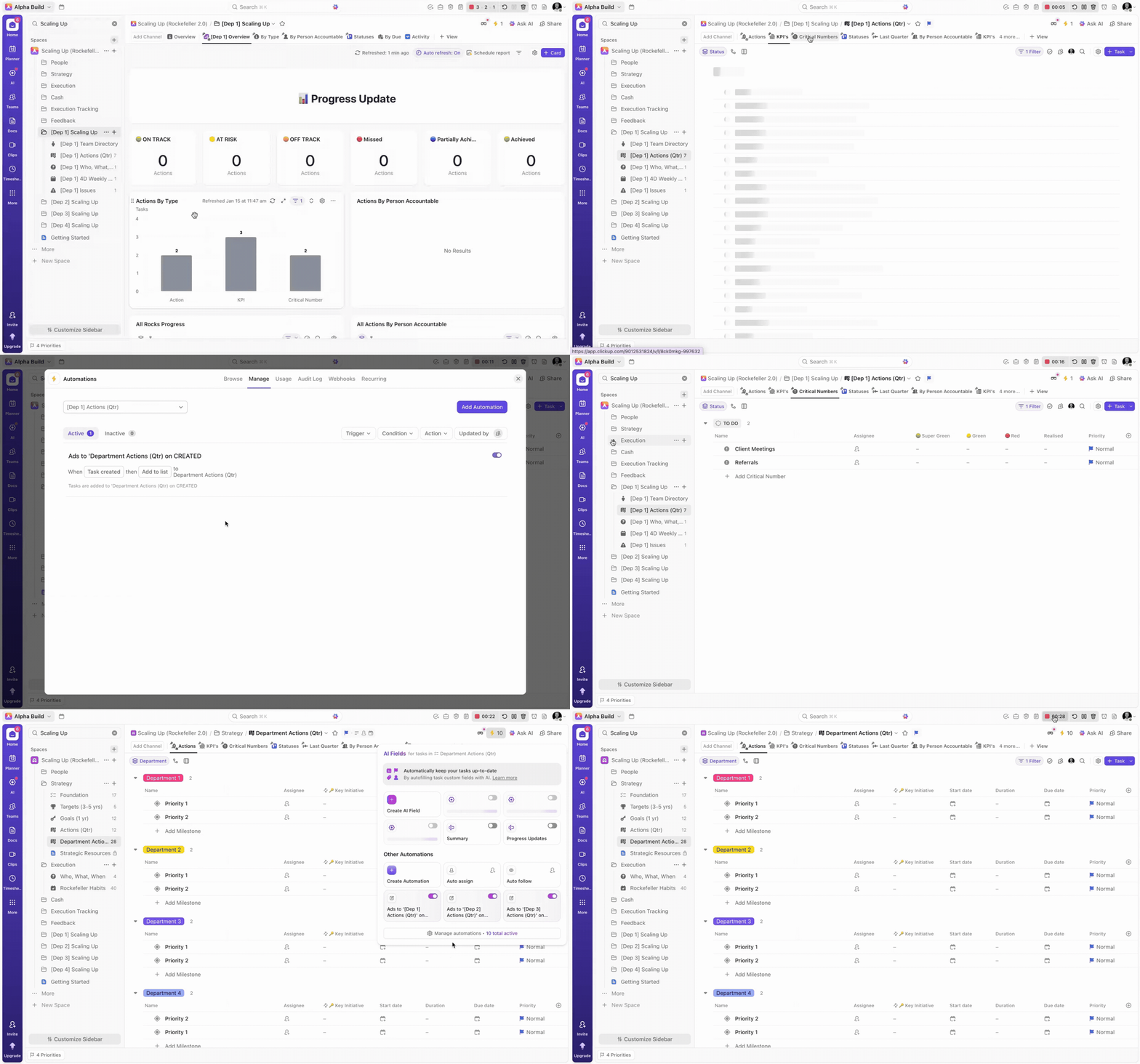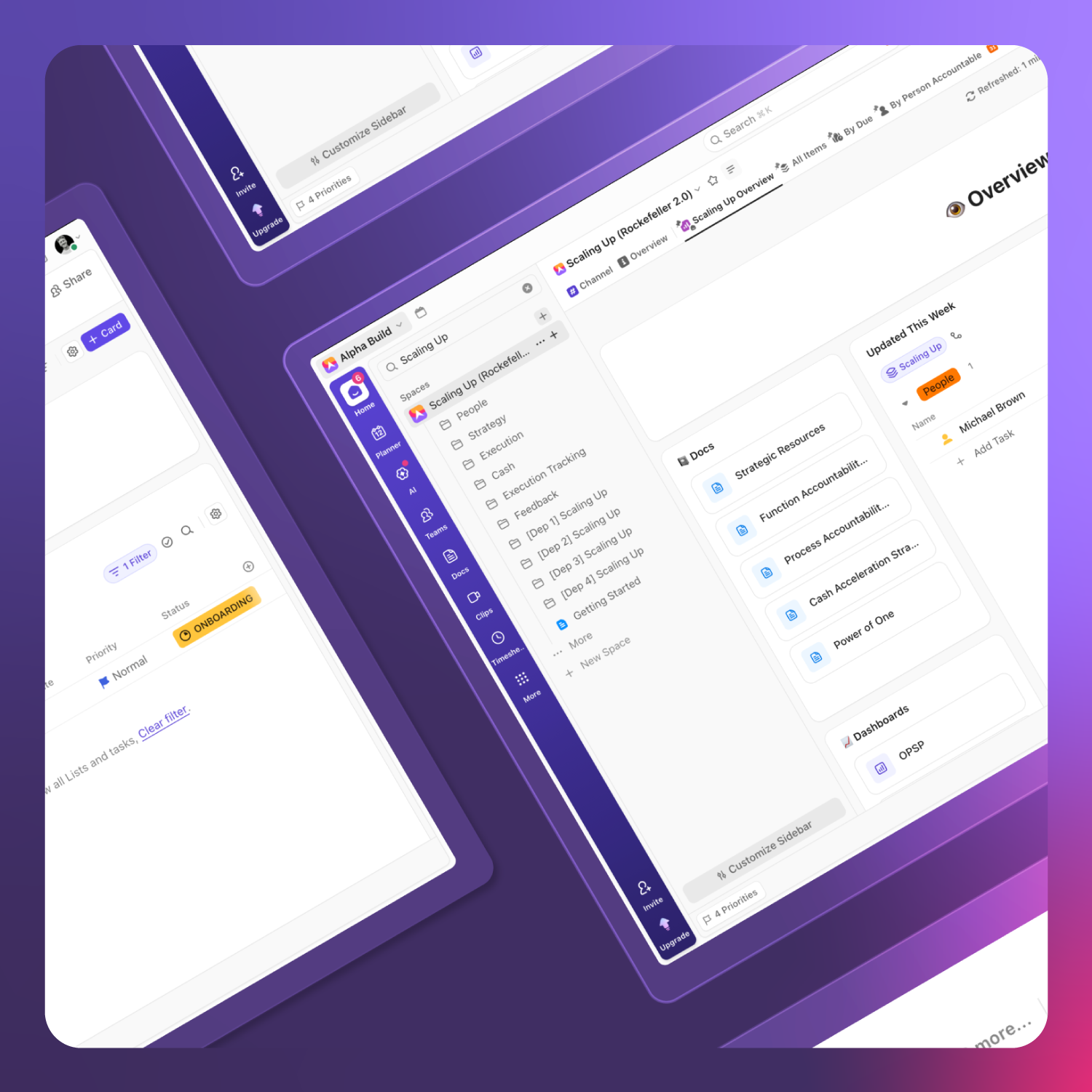

Scale Up with ClickUp: How to combine Scaling Up methodology with powerful ClickUp project management features to take your organization to the next level
While starting a business is tough, scaling one comes with its own set of challenges. Your trailblazing founder can no longer do it all. Now he needs systems, structure and strategy to maintain product/service quality while rapidly increasing operations.
With the need for a more defined structure, many businesses turn to operating systems – frameworks that outline the best way to structure your organization for long-term success. A number of these exist, from EOS, to Working Backwards, OKR’s and more, all with slightly different areas of emphasis.
If you’re evaluating the Scaling Up framework vs other systems, then Scaling Up is one of the most comprehensive and detailed frameworks. It focuses on four key decisions: People, Strategy, Execution, and Cash - and is a powerful operating system designed to help mid-market companies achieve rapid growth. Tools like the Function Accountability Chart, One Page Strategic Plan, Rockefeller Habits Checklist, and Cash Acceleration Strategies guide you in this regard, driving scalable growth.
However, even the best framework can fail without proper execution. This is where ClickUp project management features become critical.
The success of any growth initiative, including Scaling Up, hinges entirely on its degree of organizational integration. True expansion only occurs when scaling becomes part of daily operations. In the whirlwind of urgent, day-to-day demands, high-level strategy can fade from view. When this happens, scaling efforts lose momentum.
That’s why many organizations are now embedding the scaling up methodology workflow in ClickUp - ensuring that strategy, accountability, and execution live inside their operational system.
By combining the Scaling Up framework with a robust ClickUp strategic planning tool, you transform theory into practical execution.
This guide serves as a practical scaling up framework implementation guide, showing you exactly how to design your clickup project management setup for scaling up.
Architecture
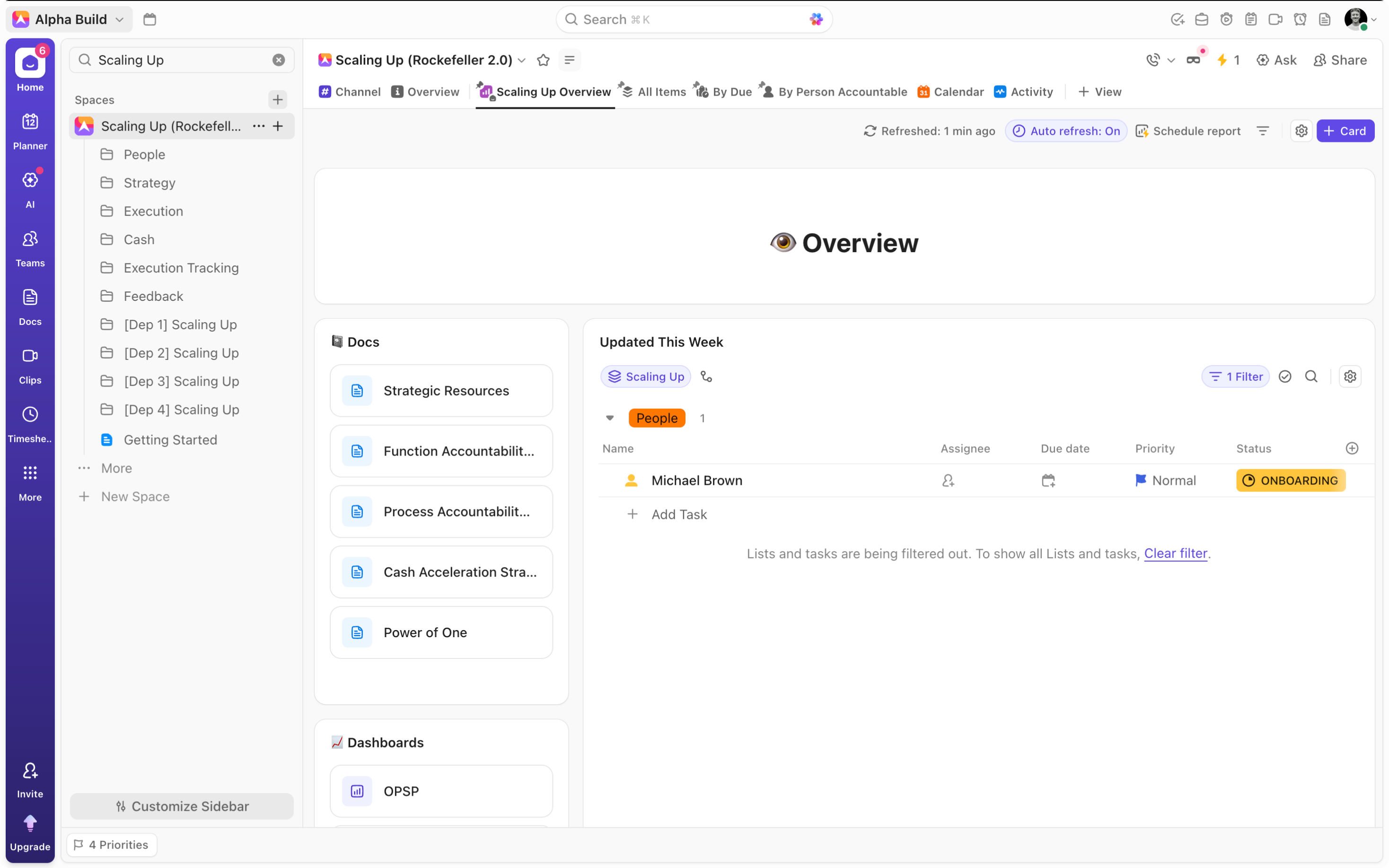
In the ClickUp project management tool, workspace architecture mirrors your organizational structure - from the overarching Workspace down to individual Tasks and Subtasks. This hierarchy is essential for grouping related work into distinct locations, effectively separating different departments, projects, or specific workflows.
When building your organization into ClickUp, you’d look to create spaces to represent business areas or departments, folders for work areas, and lists for individual workflows. Similarly, when designing your Scaling Up in ClickUp setup, structure matters.
Step 1: Create a dedicated “Scaling Up” Space.
This provides a distinct, central ‘hub’ for your operating system, allowing you to maintain your typical operations and organizational structure inside the ClickUp tool.
Step 2: Create four Folders aligned to the four Scaling Up decisions:
Next, we suggest creating Four distinct folders to represent the four key decisions: People, Strategy, Execution, and Cash.
People
The "People" decision ensures you have the right people in the right roles, all aligned and working effectively together to achieve your company’s goals. Within the people folder, we’ve outlined three powerful workflows to drive results in this key element of the Scaling Up framework:
-
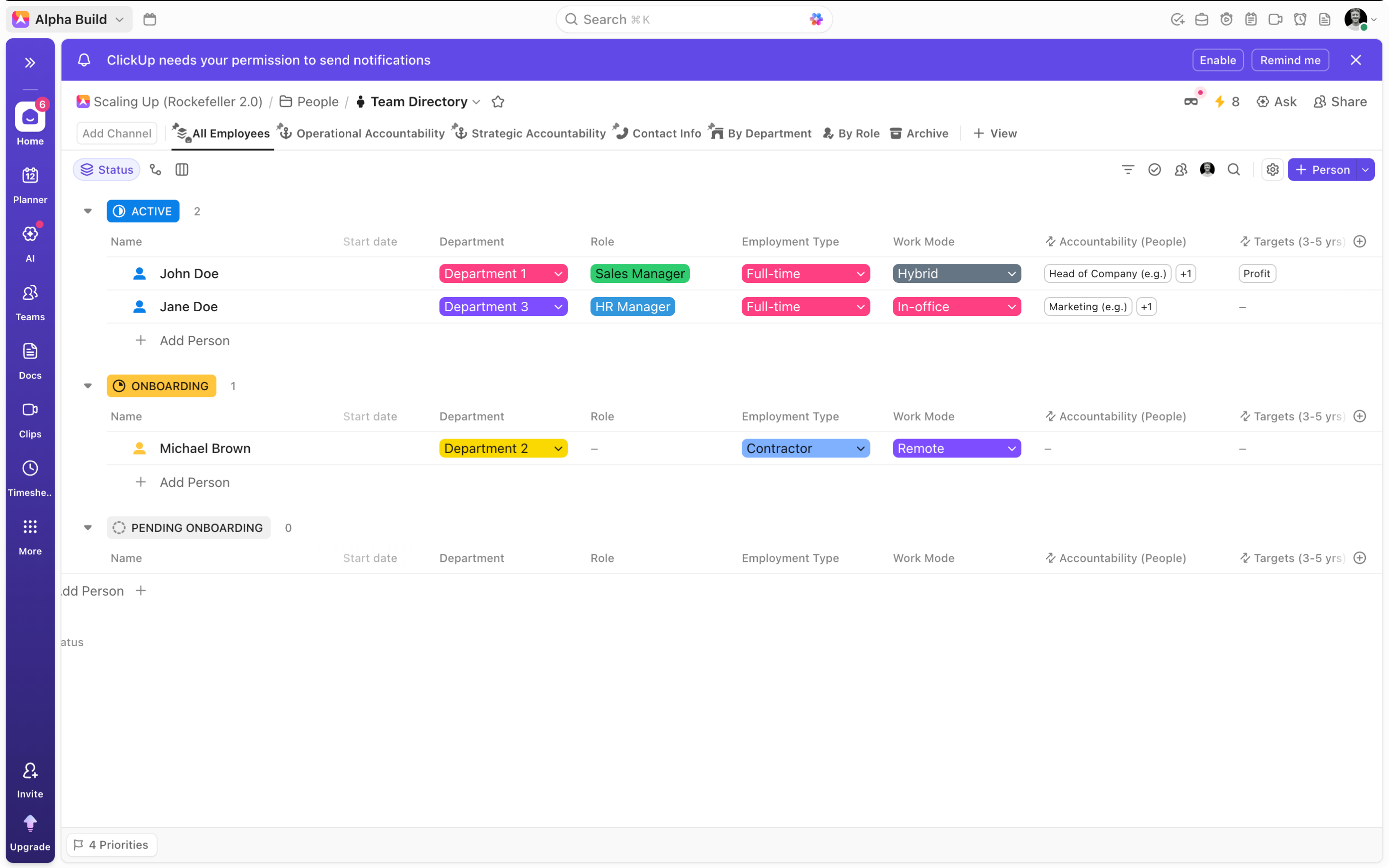
Team Directory
Create a comprehensive Team Directory list inside your ClickUp project management setup for Scaling Up. Include fields for:
-
Role
-
Department
-
Employment Status
-
Contact Info
Use relationship fields to connect individuals to accountable outcomes across your Scaling Up space — turning the ClickUp tool for business scaling into a true accountability engine.
2. FACe and PACe lists
Two additional lists should be created for the Function and Process Accountability Charts. These are foundational Scaling Up methodology consultant tools.
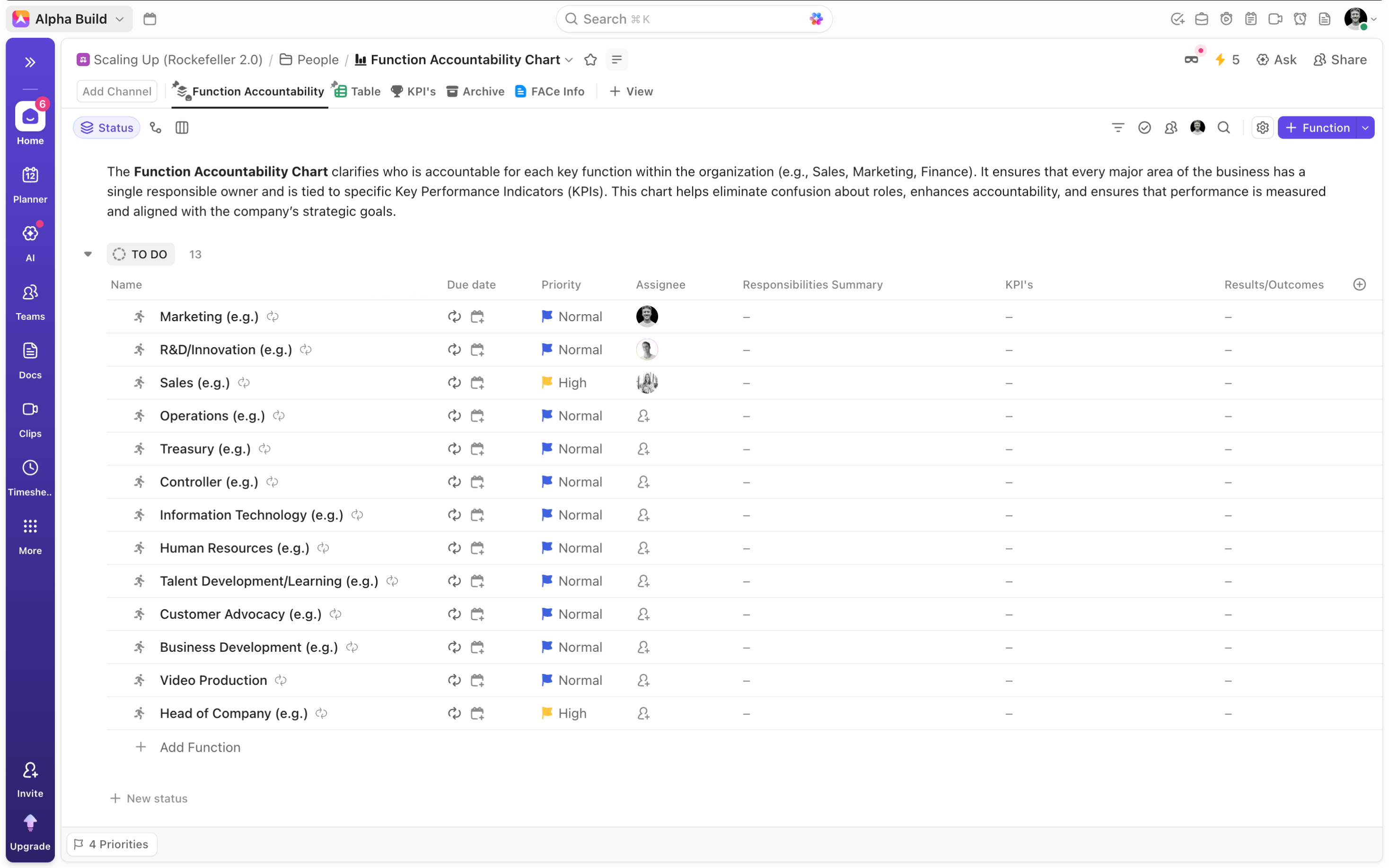
FACe (Function Accountability Chart)
The FACe tool is about defining who is responsible for what outcomes. It replaces the traditional organizational chart, which often just shows reporting lines, with a chart that shows ownership of results. Create tasks to represent the 4-7 major functions of your business. Use:
-
Assignee fields
-
KPI fields
-
Results/Outcomes fields
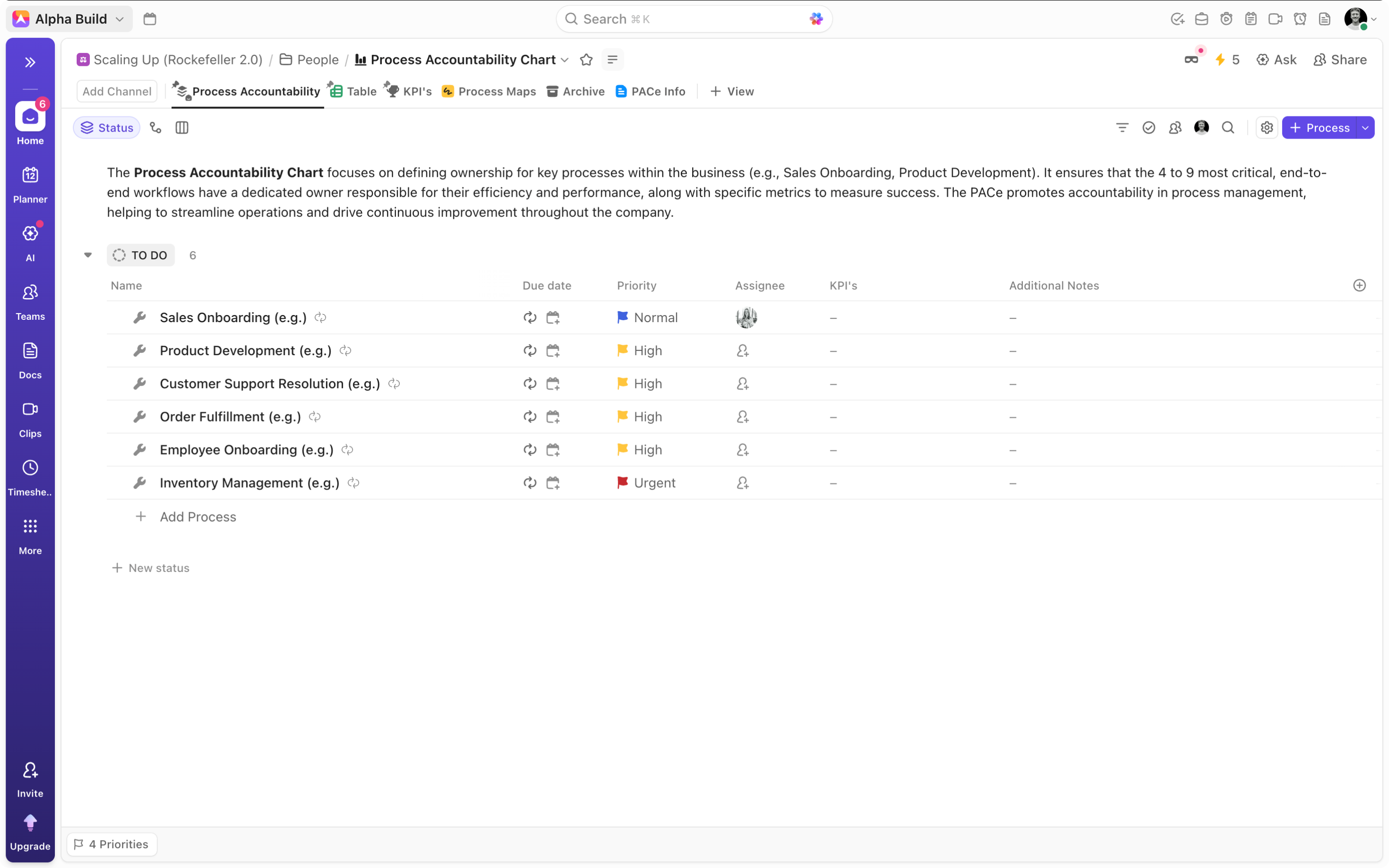
PACe (Process Accountability Chart)
While the FACe focuses on people and outcomes, the PACe focuses on the workflows that drive the business. It ensures that your core processes run smoothly without constant CEO intervention. In the PAC list, create tasks to represent the 4 to 9 most critical, end-to-end workflows. Include:
-
KPI fields
-
Process documentation links
-
Whiteboard views
Leveraging ClickUp project management features like Whiteboards and recurring tasks ensures regular review cycles without manual admin.
Scaling Up Strategies in ClickUp
A clear strategic vision is essential to growing any organization. Scaling Up views strategy as a layered and structured system designed to align the entire company. The framework argues that for a vision to drive growth, it must be broken down into specific timelines and actionable components. Using ClickUp as your ClickUp strategic planning tool, create five lists inside the Strategy folder:
Foundation
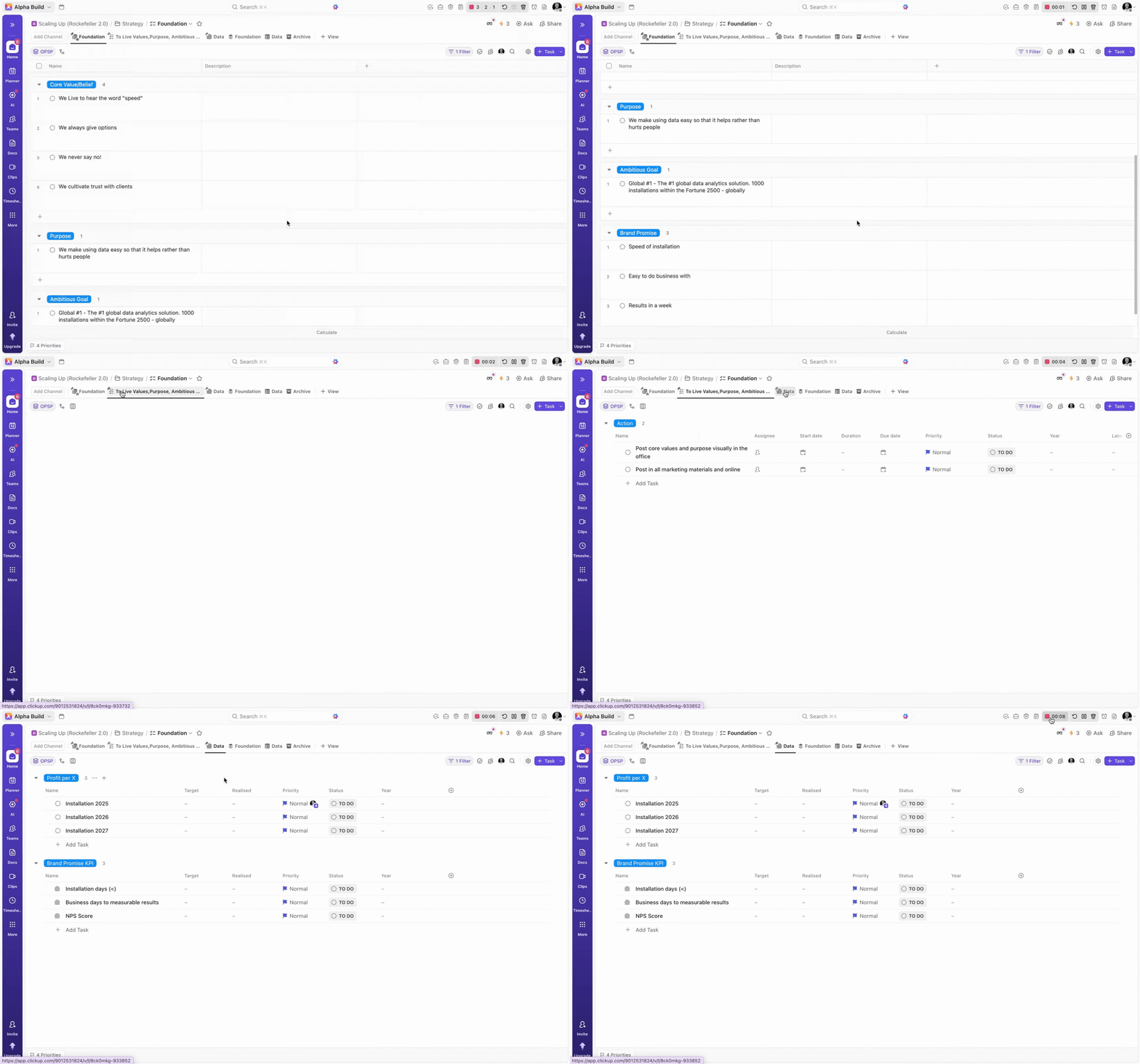
First, consider creating a foundation list that serves to house all of the foundational components of your strategy, from core values and purpose, to brand promises and your Big Hairy Ambitious Goal (BHAG). Create an OPSP (One Page Strategic Plan) dropdown custom field to group your tasks accordingly. For added visibility, consider grouping by the OPSP field across your different views. This list can be used to house all of the strategic elements that don’t relate to the 3-5 year, 1 year, or quarterly components of your strategy.
Targets (3-5 yrs)
3-5 year targets serve as the bridge between your long-term vision (the BHAG) and your immediate annual execution plan. Key Thrusts and KPI’s outline the specific actions and targets you’ve identified to drive you towards your BHAG. To accurately capture both Thrusts and KPI’s, create distinct views for each. Use unique task types to distinguish and filter items for greater visibility. In the Actions or Key Thrusts view, add fields like “start” and “due date”, “priority”, “progress”, etc. In contrast, create “Target” and “Realized” number fields in your KPI’s view for exceptional clarity on your desired and achieved results when it comes to Profit, Revenue, and Market Cap.
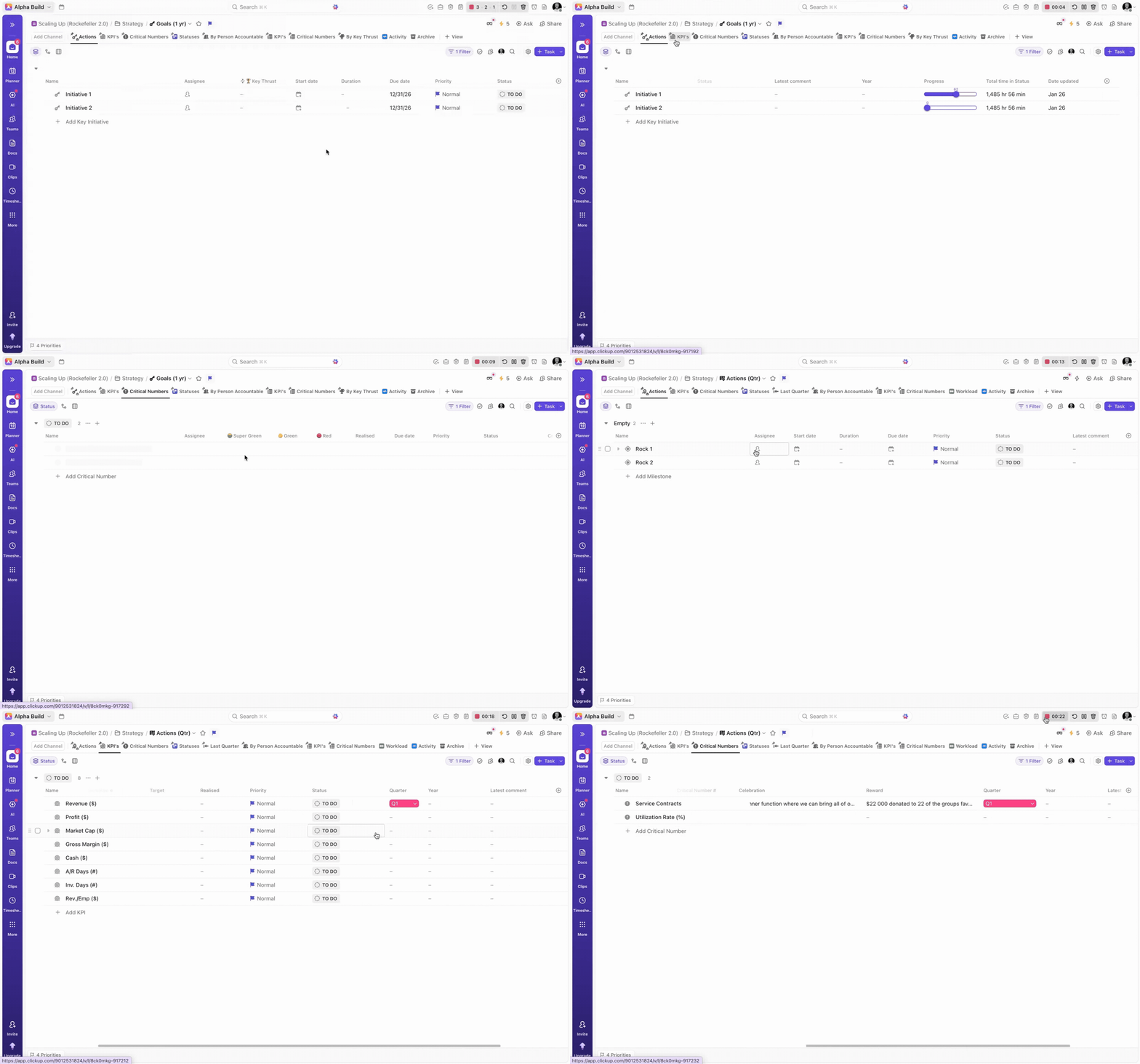
Goals (1 yr) and Actions (Quarterly Rocks)
While your 1-Year Goals translate mid-term strategy into specific fiscal milestones for the immediate future, your Quarterly Actions (Rocks) break those milestones down into 90-day execution sprints. Together, they create a rhythm of accountability: The annual plan ensures you remain on the calculated trajectory toward your 3-5 year targets, while Rocks provide the focused urgency and traction needed to execute that plan one quarter at a time.
These two important lists should be designed in the same way as the “Targets” list with one important addition – critical numbers. Combine a new “Critical Numbers” task type with an additional filtered view for dedicated visibility on critical numbers. “Super Green”, “Green”, and “Red” number fields can be used to capture your targets, while the familiar “Realized” field can be employed to capture what was achieved.
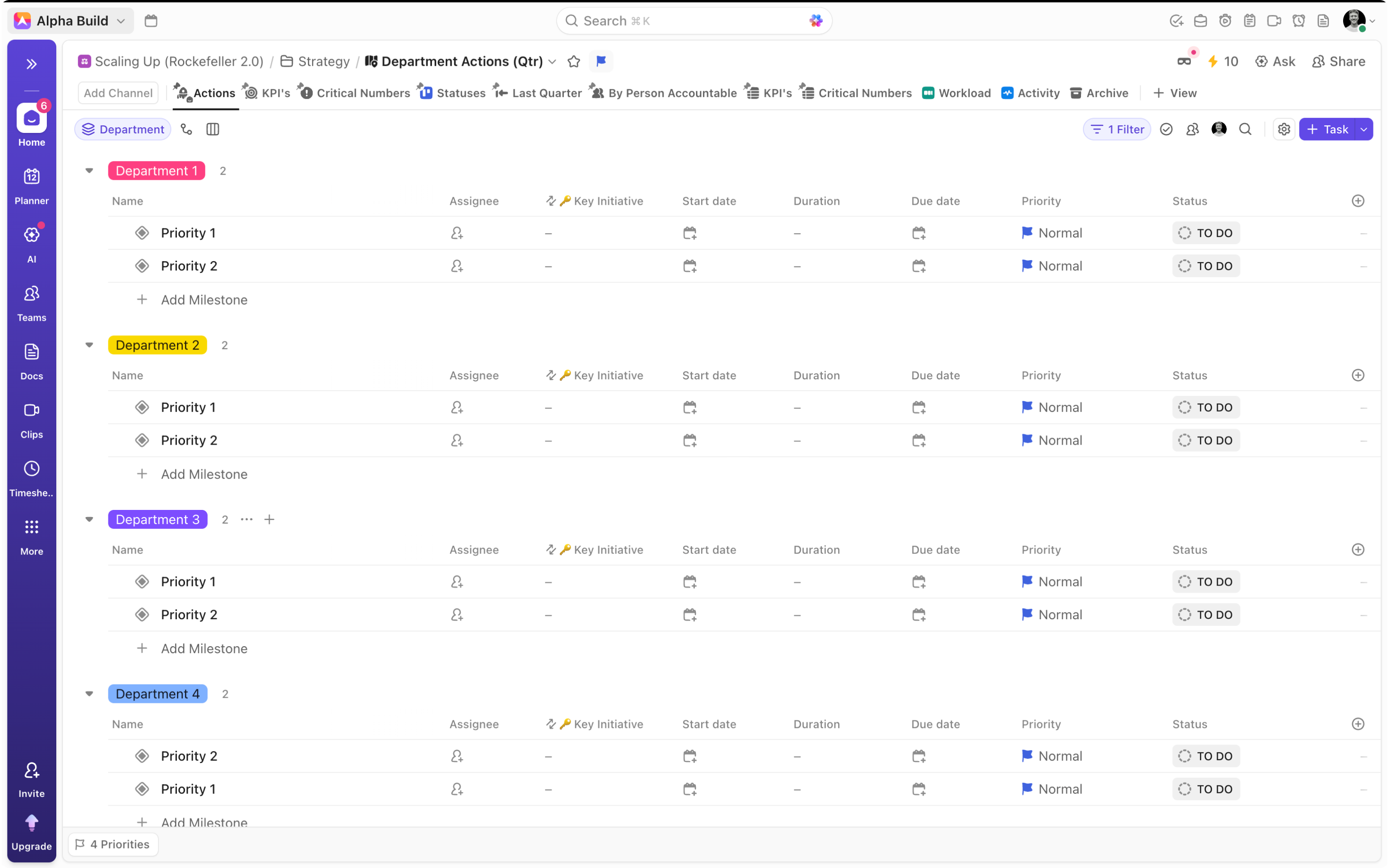
Department Actions (Quarterly)
Consider creating an additional strategy list for department rocks, KPI’s, and critical numbers. By including this final list, fitted with a department dropdown, you allow your individual teams/departments to scope out and document their quarterly priorities, strengthening your ClickUp strategic planning process. Group by “Department” across your different views for greater clarity on what elements relate to which departments.
Scaling Up in ClickUp Execution
In the Scaling Up framework, execution is about turning revenue into profit. It solves the problem of chaos and drama within the organization by implementing precise habits and routines. To achieve this, we’ve outlined two essential workflows or tools: “Who, What, When”, and “Rockefeller Habits”.
-
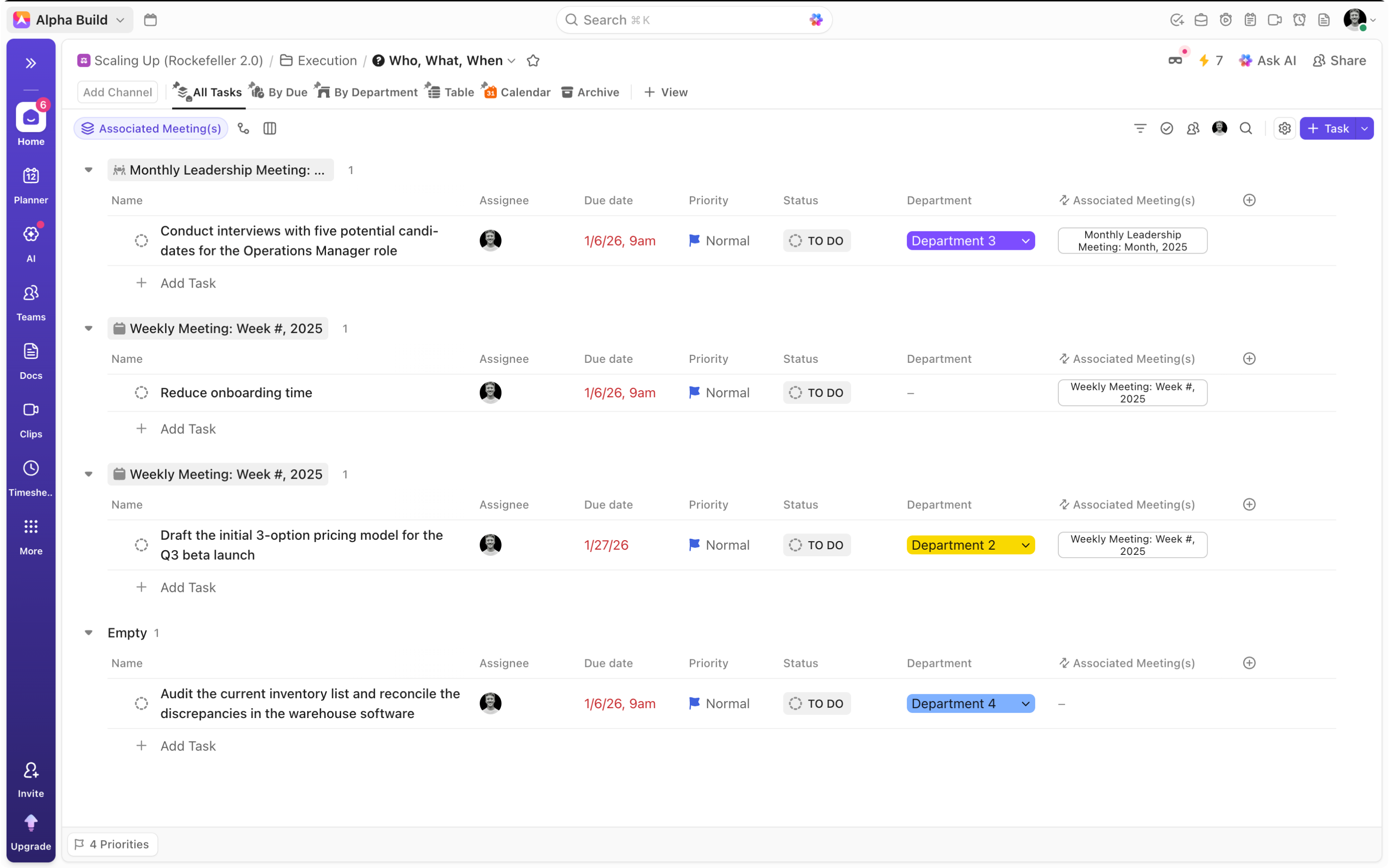
Who, What When
The Who, What, When list is a simple but powerful accountability tool that clarifies who is responsible, for what action item, when.
-
Task name = What
-
Assignee = Who
-
Due Date = When
-
Relationship Field = Associated Meetings
Grouped correctly, this becomes a powerful execution tracker inside your ClickUp project management tool.
2. Rockefeller Habits
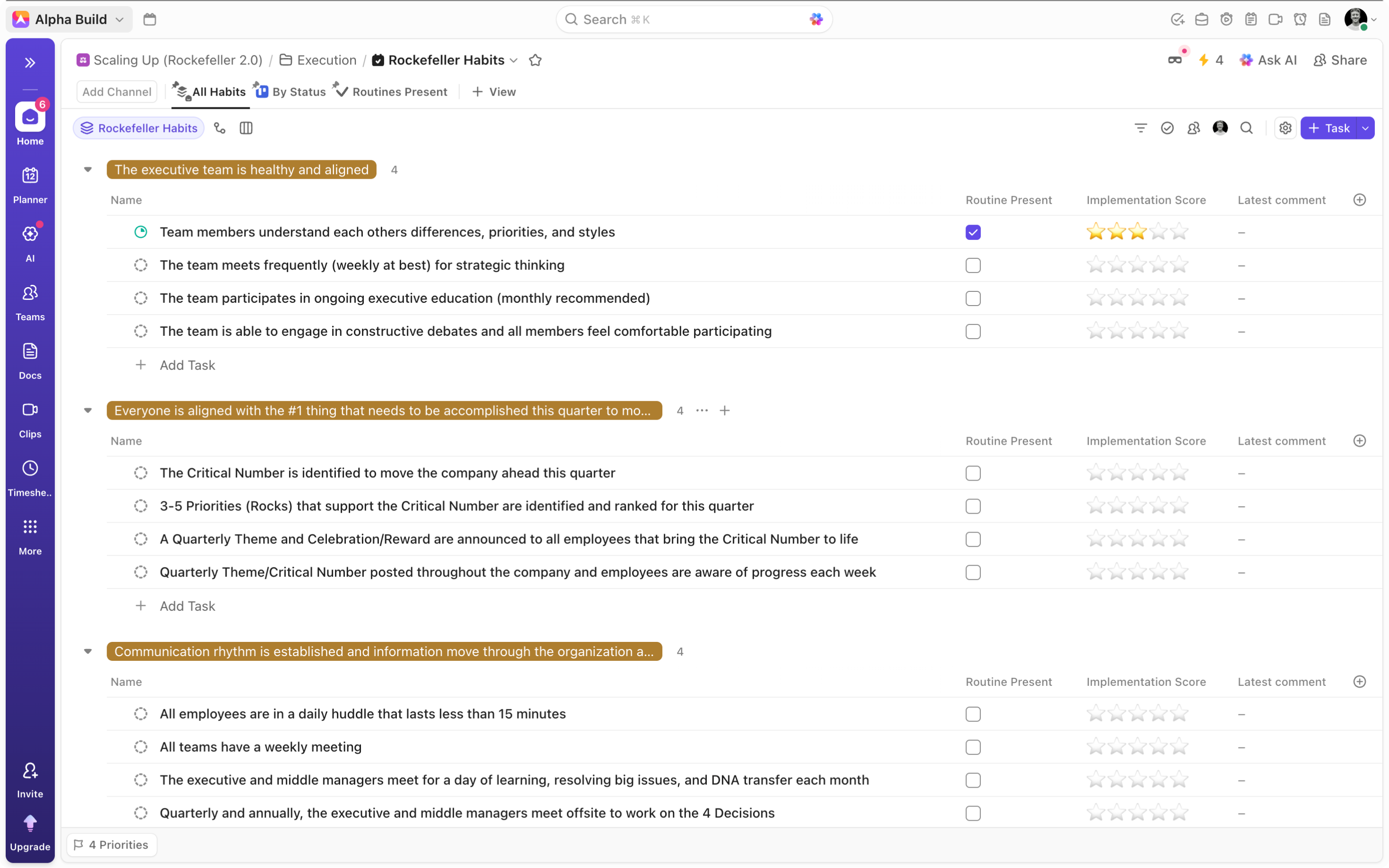
These 10 habits are designed to reduce the time it takes to manage the business, serving as the tactical "rules of the road" that stabilize a growing company. Here’s how to build them into ClickUp:
-
Create a dropdown field for the 10 overarching habits
-
Add the checklist items that relate to each habit as tasks
-
Attach the overarching habit to each of the corresponding checklist items. Grouping by the new ‘Rockefeller Habits’ dropdown field, you can then ensure that all of the checklist items are grouped according to their related habits.
-
Include a “Routine Present” checkbox
-
Add an additional “Implementation Score” rating field
This is where the Scaling Up methodology workflow in ClickUp becomes embedded in daily routines.
Cash
As you scale, you generally need to spend money on inventory, staff, and infrastructure before you receive payment from customers. Many companies scale revenue but collapse due to cash flow mismanagement. We’ve identified two key Cash tools to help you improve your cash flow: Cash acceleration strategies (CASh) and 7 Financial Levers. Using ClickUp as a Scaling Up methodology project management tool, build:
CASh (Cash Acceleration Strategies)
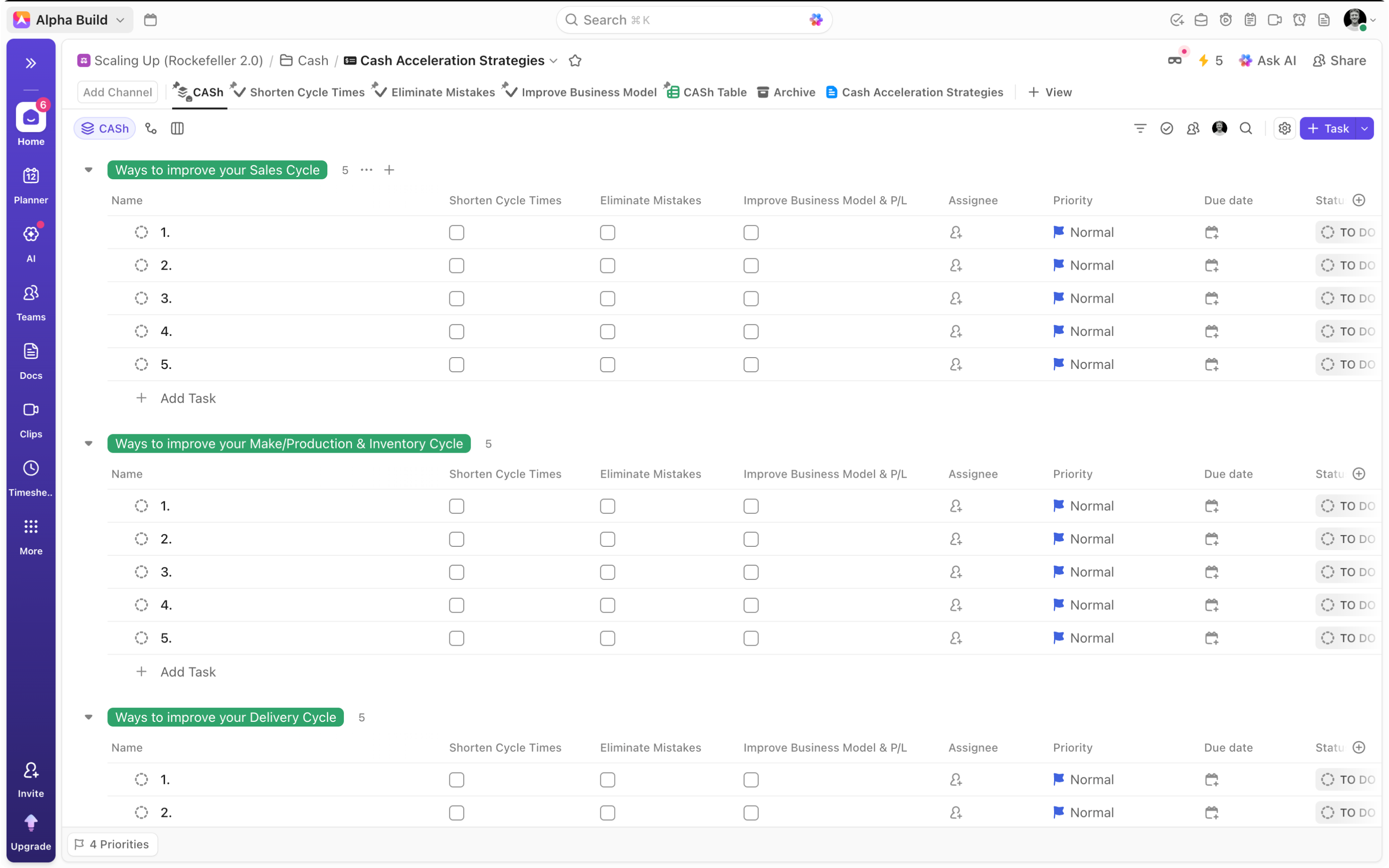
Cash Acceleration Strategies outline the key strategies identified to help you improve the four primary components of your cash cycle: Sales, Make/Production & Inventory, Delivery, and, Billing & Payment. Here’s how to build this tool in ClickUp:
-
Create a CASh dropdown fitted with each of the mentioned cash cycle components (Sales, Production, Delivery, Billing)
-
Create tasks 1-5 for each of the four elements, attaching the corresponding dropdown option.
-
Add checkboxes for “Shorten Cycle Times”, “Eliminate Mistakes” and, “Improve Business Model & P/L”
With this structure, you’re able to easily add strategies for each of your four key cash cycle components, driving improvements.
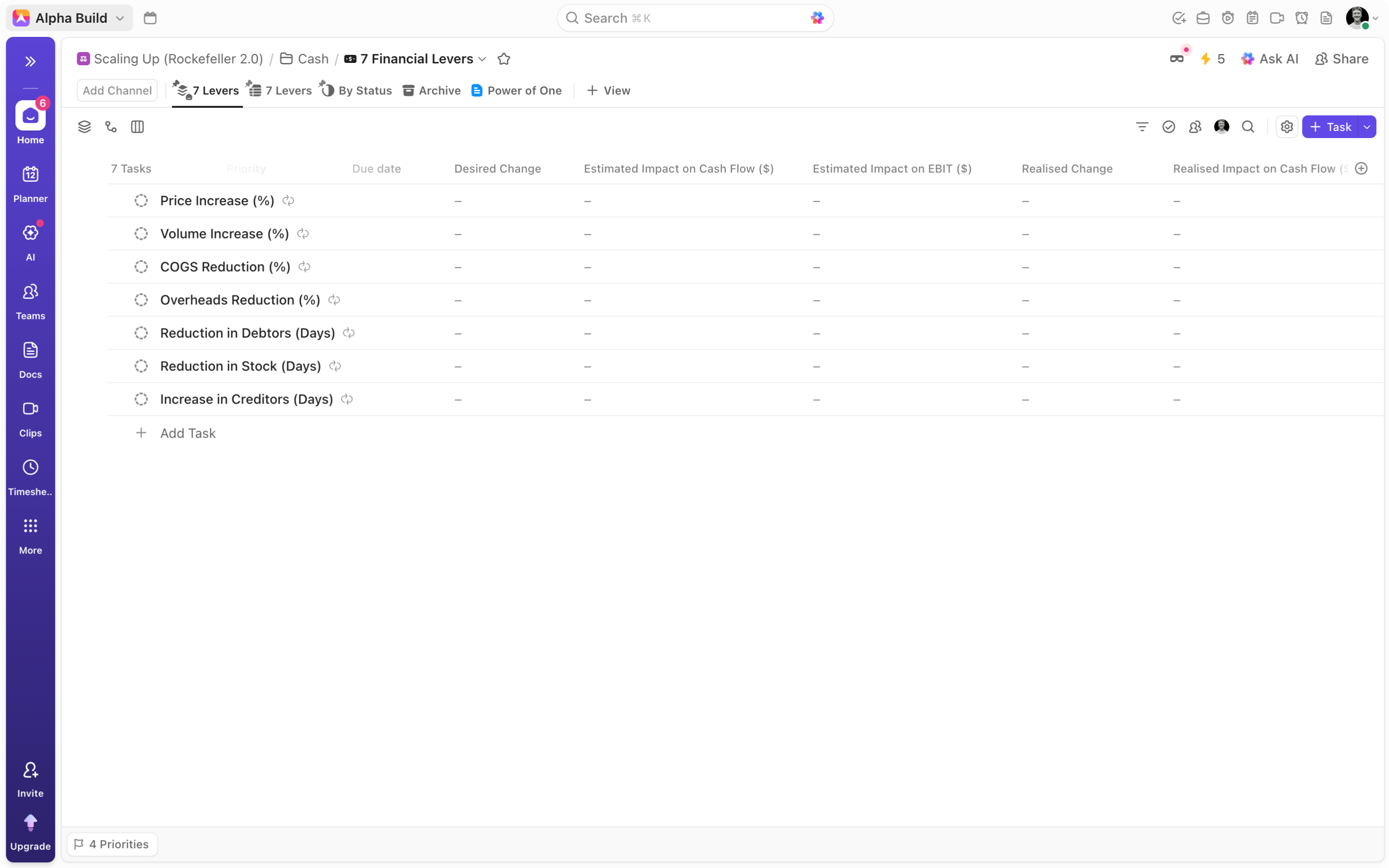
7. Financial Levers
The 7 Financial Levers tool helps you to estimate and track the impact of adjusting your business’ 7 key financial levers on your cash conversion cycle and overall liquidity.
Here’s how to build this powerful tool out in ClickUp:
-
Create tasks for each of the 7 levers:
-
Price Increase (%)
-
Volume Increase (%)
-
COGS Reduction (%)
-
Overheads Reduction (%)
-
Reduction in Debtors (Days)
-
Reduction in Stock (Days)
-
Increase in Creditors (Days).
-
-
Add custom fields
-
Desired Change
-
Estimated Impact on EBIT
-
Estimated Impact on Cash Flow
-
Realized Change
-
Realized Impact on EBIT
-
Realized Impact on Cash Flow
-
-
As an optional extra, add an additional ‘Power of One’ doc view, allowing you to understand the impact of a one unit change to each of these levers, informing your decisions regarding the 7 financial levers.
This transforms ClickUp into a true ClickUp tool for business scaling.
Execution Tracking: Meeting Lists with Powerful Dashboards
Meetings are the heartbeat of Scaling Up, creating a "pulse" that moves information quickly and accurately, replacing the chaos of constant interruptions, ultimately saving you time.
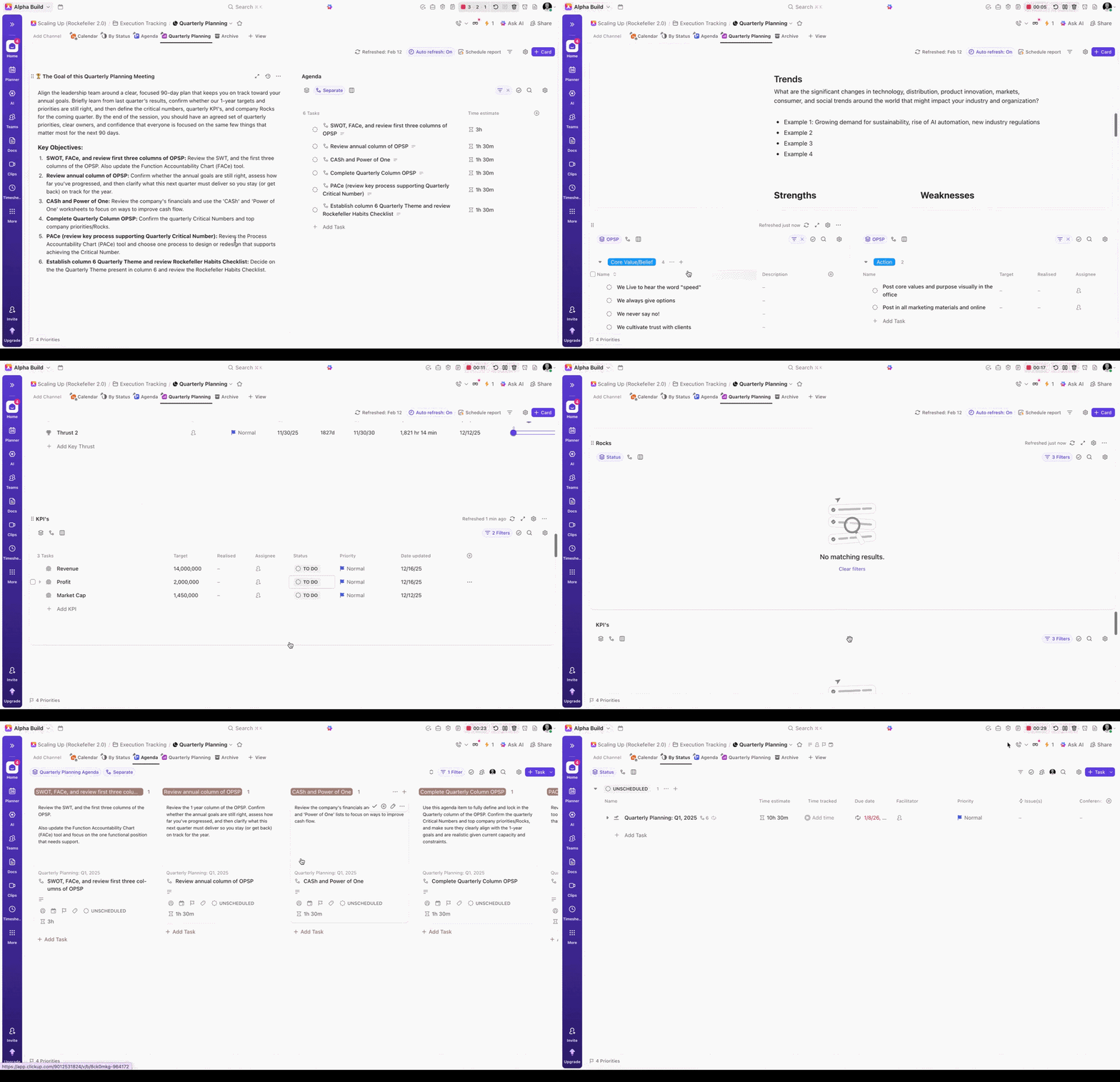
These meetings are so important that we suggest creating a dedicated ‘Execution Tracking Folder’ to house meeting lists for each of your key meetings:
-
Weekly 4D Meetings
-
Quarterly Planning
-
Annual Planning Meetings
To transform these lists into powerful meeting hubs, there are a few crucial steps you need to take. For each of your meeting lists:
-
Create a task to represent the meeting, including recurring settings to reflect the unique cadence of each of your meetings.
-
Scope out subtasks to represent the agenda items, including detailed descriptions for each. For added visibility, create a ‘[Meeting Name] Agenda’ dropdown field and map out each of your subtask agenda items, before attaching the dropdown option to the corresponding subtask.
-
Create a board view grouped by ‘[Meeting Name] Agenda’, showing subtasks as separate, and filtering for ‘[Meeting Name] Agenda is set’.
-
By ensuring that your card cover shows task descriptions, you can create a powerful visual of all of your subtasks, and their detailed descriptions as distinct items on your ‘Agenda Board’.
To truly transform your lists into comprehensive meeting hubs, consider creating meeting dashboards that allow you to run your entire meeting from the dashboard location. By leveraging powerful dashboard cards, you can pull information, and data from across your workspace into one location, providing you with all the necessary resources to effectively run your Scaling Up Meetings. Consider the example of the Quarterly Planning Meeting.
First, employ a ‘Notes’ card to outline the goals and key objectives of the meeting. Introduce an additional task list card, filtering to isolate the subtask agenda items, allowing you to close out items as they are completed. Use the key objectives to identify additional elements to include in the dashboard. For example, since we know that reviewing the annual column, and completing the quarterly column of the OPSP are top priorities, you can look to pull the annual data into the dashboard using task list cards, and selecting the corresponding data source. Additionally, data from the ‘Actions (Qtr)’ list can be embedded, allowing you to outline your actions, KPI’s and Critical Numbers for the upcoming quarter. Further inclusions can be made; embedding the SWT doc, creating cards to capture the FACe and PACe tools, and introducing the ‘Who, What, When’ to outline action items and accountability.
Make Reviews Easy: Use intuitive status options to easily outline success
The goal of Scaling Up is to build a predictable business. By rigorously reviewing specific components, you strip away hope and luck, replacing them with discipline and data.
But how do we achieve this?
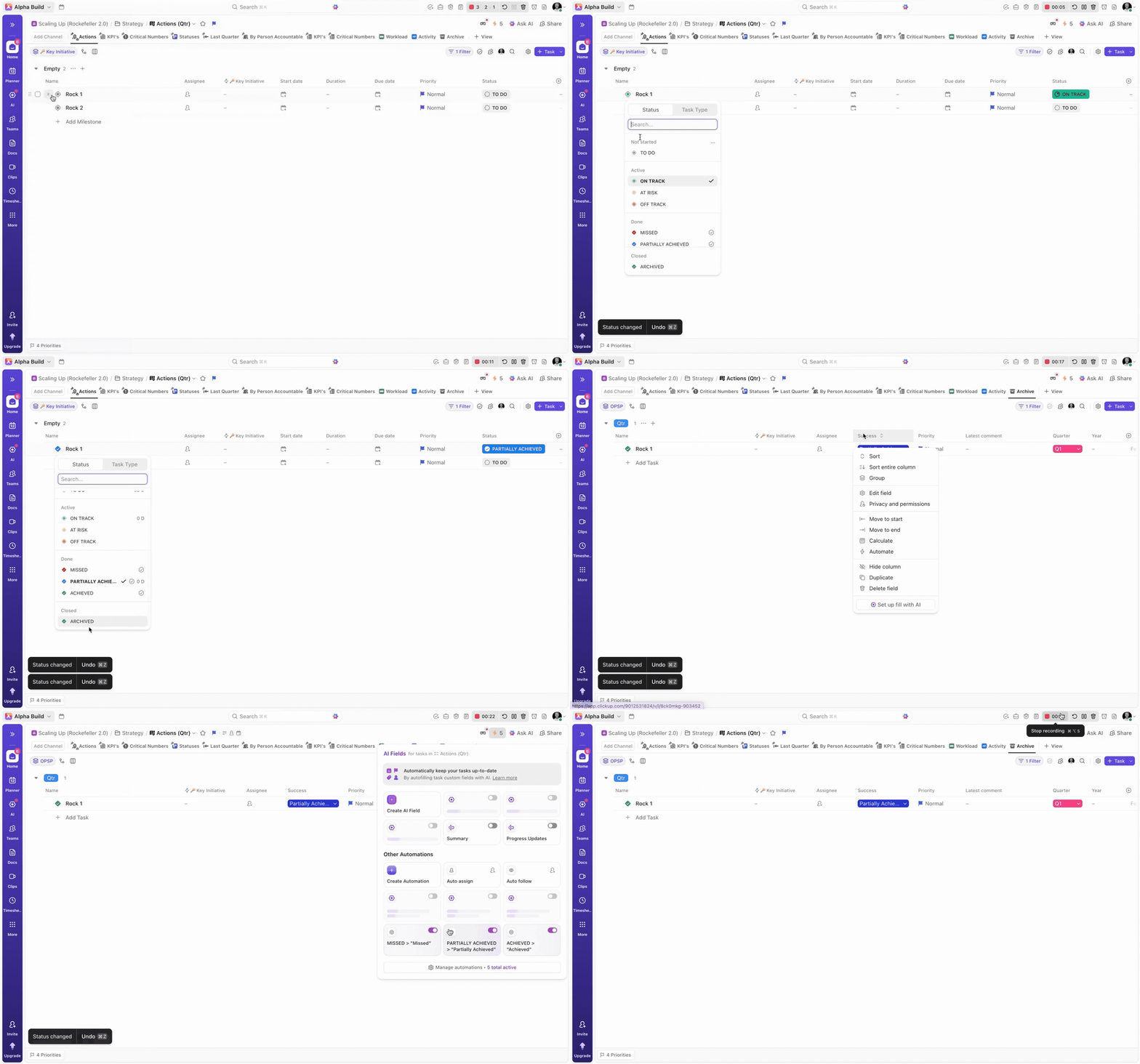
The first step is to create a set of status options that provide insights into:
1. How the specific component is performing
2. Upon completion, whether the component was achieved/achieved its desired aim.
For this consider a set of status options like:
-
Not Started → To Do
-
Active → On Track, At Risk, Off Track
-
Done → Achieved, Partially Achieved, Missed
-
Closed → Archived
There’s just one issue, when items are archived, the status changes out of the ‘Done’ status into the ‘Closed’ status, removing any trace of the tasks’ success. To resolve this issue, create a dropdown field called ‘Success’ with options, Achieved, Partially Achieved, and Missed. Use automations to ensure that whenever a task moves into one of the ‘Done’ status options, the corresponding ‘Success’ dropdown option is applied.
This ensures data integrity across your ClickUp project management setup for Scaling Up, providing powerful data points for an effective review process.
Additional Features
Feedback
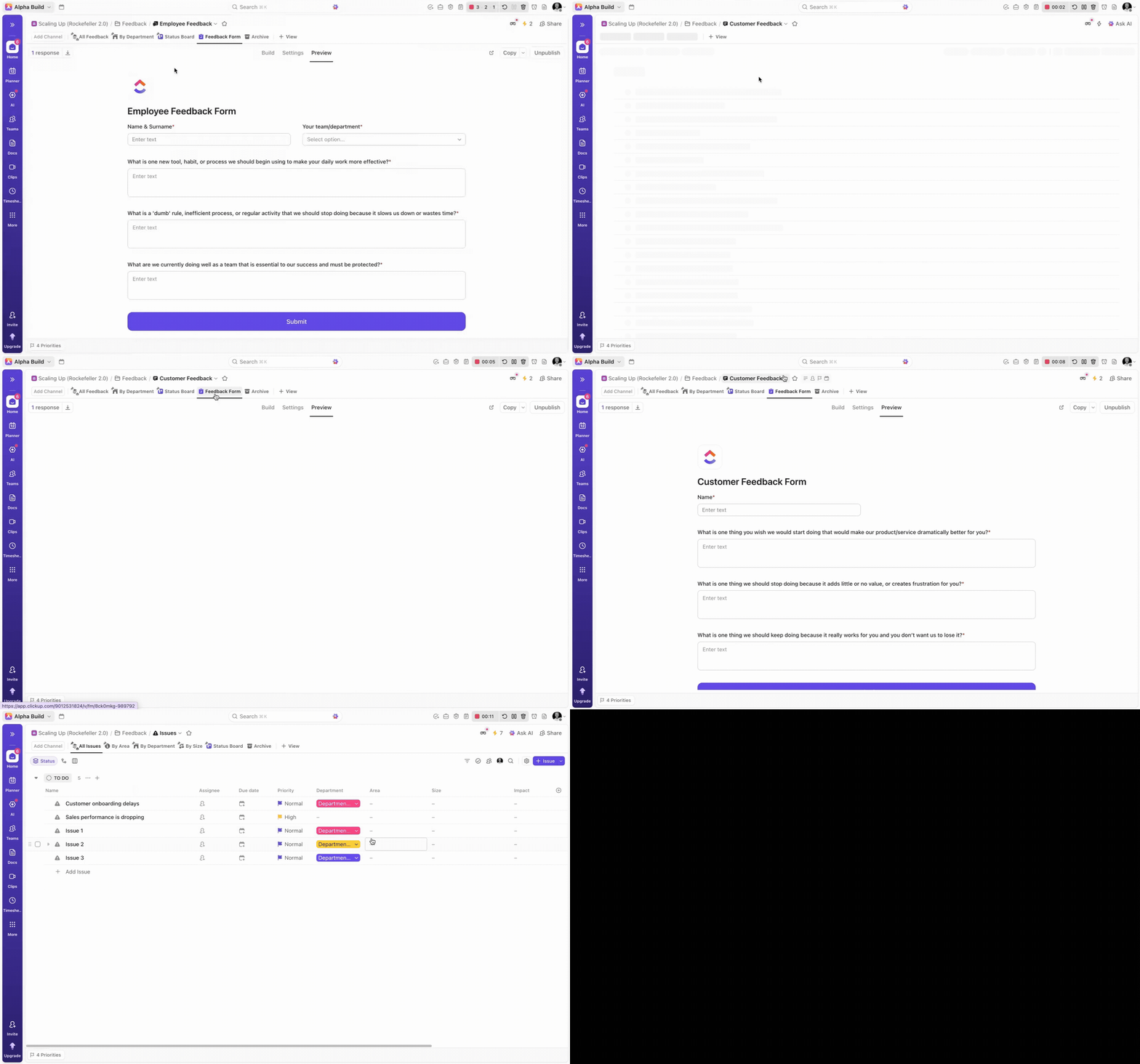
The ability to gather feedback, both from customers and employees, helps collect the kind of qualitative data that serves as a leading indicator of the company’s health.
Consider creating an additional Feedback folder fitted with Employee and Customer Feedback lists. In each, include a Feedback form, using the three simple, “Start”, “Stop”, “Keep” questions to gather vital internal and consumer feedback.
Create an additional “Issues list” providing a location for your team to easily outline pressing issues for discussion with fields for:
-
Area
-
Size
-
Impact
-
Associated meetings
These qualitative indicators capture the key Scaling Up element affected, and subsequently strengthen your ClickUp strategic planning tool.
Dedicated Department Siloes
Finally, consider including additional Department folders, allowing your departments/teams to manage and implement Scaling Up methodologies in their own distinct hub, for greater visibility.
Create department-specific folders including:
-
[Dep] Team Directory
-
[Dep] Actions (Qtr)
-
[Dep] Who, What, When
-
[Dep] 4D Weekly
-
[Dep] Issue
Use automations to sync global and department lists.
This final layer ensures full integration of the Scaling Up in ClickUp setup, transforming ClickUp from a task manager into a complete Scaling Up methodology consultant tools embedded in daily operations.