

As productivity tools like ClickUp, Asana, and Monday.com etc., compete for market share, the race to roll out new features is accelerating. The rise of AI in the productivity landscape has intensified this: every platform wants to offer the smartest, most powerful integrations.
But, while features matter, they aren’t what truly drive productivity.
It’s true that more advanced functionality leads to more streamlined workflows and improved efficiency. And, in our humble opinion, ClickUp stands out as one of the most comprehensive work management tools available. However, without a deep understanding of your productivity tool and how to use it effectively, even the most sophisticated features remain unused.
Features like time tracking, clip recording, and ClickUp dashboard tracking are only as powerful as the users behind them. On the individual workflow level, efficiency depends on people who know how to create, manage, track, and communicate on tasks inside the tool.
That’s why successful adoption, not just setup, is the real driver of productivity.
Why ClickUp Adoption Matters
Without consistent, effective adoption, your ClickUp task management system won’t deliver its potential. True productivity comes when everyone understands how to use the tool to simplify workflows, collaborate better, and make decisions faster.
To achieve this, two key steps are essential:
-
A comprehensive onboarding resource that clearly outlines features, best practices, and expectations.
-
A system for tracking and accountability, ensuring every user completes their ClickUp onboarding successfully.
In this guide, we’ll explore practical ways to achieve both — using ClickUp dashboards, training templates, and ClickUp onboarding checklists designed to improve adoption across your organization.
Common Barriers to ClickUp Adoption
Even the best productivity tools for teams can fail without the right foundation. Here are some common challenges:
-
Poorly Designed Workflows
Clunky, poorly engineered workflows are perhaps the biggest barrier to pervasive adoption. Work management tools should make life easier - not harder. To avoid this, sophisticated architecture is required to accurately mirror and enhance your workflows. Ill-designed structures frustrate users and lead to poor ClickUp adoption, reducing overall productivity.
-
Learning Curve Fatigue
Each productivity tool comes with its own interface and logic. Learning how to navigate ClickUp, create tasks, communicate effectively, and access additional features can feel like learning a new language. Without guidance, employees often revert to old systems for managing their workflows.
-
Lack of Time
Time is often scarce. When deadlines loom, few people have bandwidth to learn new tools. If ClickUp onboarding feels like an extra burden, users avoid it, which ultimately leads to inefficiency and missed opportunities for improvement.
Productivity Tool Adoption Best Practices
Step 1: Building an Intuitive System
Before onboarding your team, create an eco-system that not only facilitates, but also enhances daily work. Your ClickUp workspace should clearly reflect your organization’s structure and support your processes.
For this, you need someone with a deep understanding of ClickUp and how to apply the tool’s features to meet your organization's unique needs. This could be an employee with a comprehensive understanding of the platform, or an external ClickUp expert that you hire to build out your workspace. Use ClickUp’s hierarchy to represent your organization's structure. For example, use “Spaces” to represent departments, “Folders” to represent work areas, and “Lists” to represent granular workflows. Automations can then be employed to reduce manual tasks and streamline flows.
Step 2: Create an Onboarding Resource
Once your workspace is built, focus on ClickUp onboarding. ClickUp University is a great starting point, but it’s just the beginning.
We recommend creating an internal onboarding resource inside your ClickUp workspace for easy access:
-
Build a template list titled “[User Name] Onboarding”.
-
Break it into stages like “ClickUp Fundamentals”, “Collaboration & Productivity Essentials”, “Mastering Workflows”, and “Advanced Features”.
-
Use a dropdown custom field called “Onboarding Phase” to clearly label each stage mentioned above
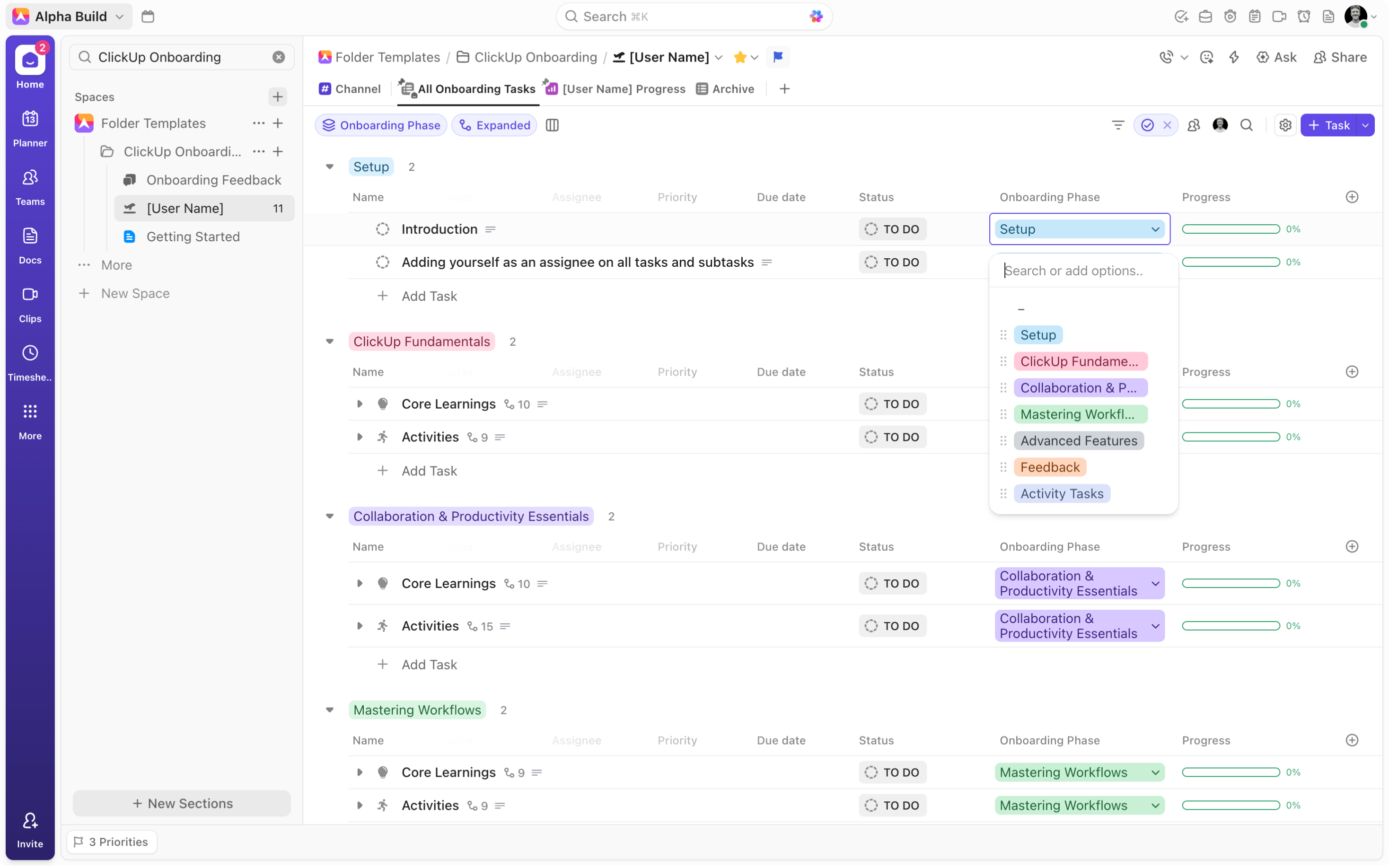
Within each of these broad phases, create two distinct learning streams and attach the corresponding “Onboarding Phase” dropdown option:
-
Core Learnings - Inform users about ClickUp’s features and best practices, i.e. what to know (e.g. sidebar navigation, task creation, hierarchy basics)
-
Activities - Guide them through practical application and implementation to ensure that their understanding is not purely theoretical, i.e. what to do (e.g. customize the sidebar, add a list to favorites, create a recurring task).
For additional clarity, consider creating unique task types to represent “Core Learnings” and “Activities” and group by “Onboarding Phase” in your list.
Combine written guides with short video explainers linked via a “Video Guides URL” field. This ensures both visual and practical understanding - a key element of effective ClickUp onboarding.
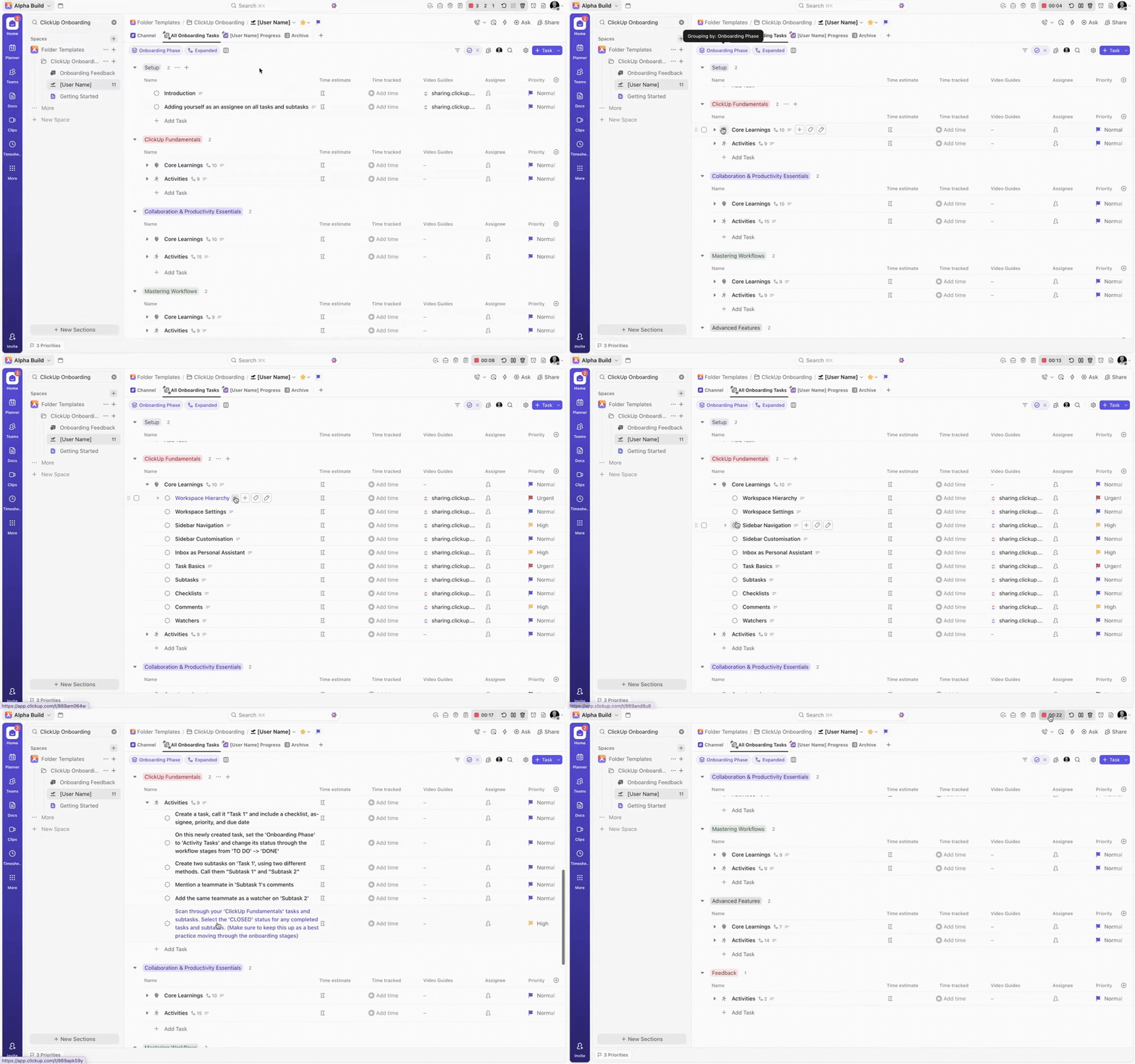
By combining core learning videos with hands-on activities, your team will not only understand the system, but will also know how to apply it.
Step 3: Track Progress with ClickUp Dashboards
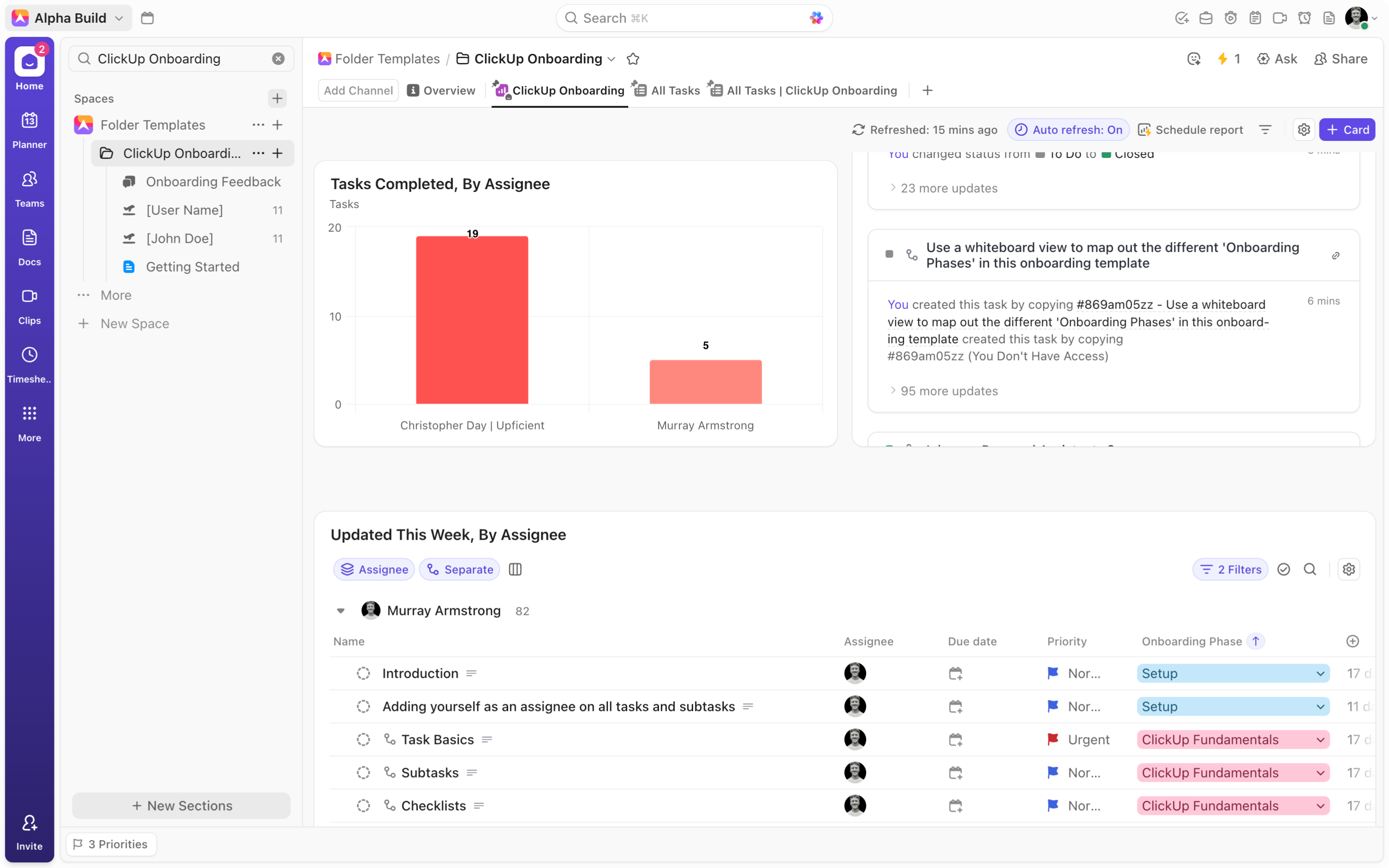
Creating a comprehensive ClickUp onboarding resource is one thing, but ensuring your team actually uses it is another. That’s where ClickUp dashboards for performance and progress tracking come in. By creating a series of dashboards that track and compare progress across users, you can ensure the kind of visibility that drives accountability. As each user is aware that managers can easily check up on progress and compare onboarding speed across users, they are incentivized to speedily complete the onboarding process.
To achieve this, set up two dashboards:
-
User-Level Dashboard (in each “[User name]” list)
-
Use calculation cards for tasks “To Do,” “In Progress,” and “Complete.”
-
Add bar graphs for task completion by onboarding phase.
-
Include task list cards filtered by “updated this week.”
-
Folder-Level Dashboard (for the entire “ClickUp Onboarding” folder)
-
Group data by assignee to compare progress.
-
Include bar and line charts to visualize completion over time.
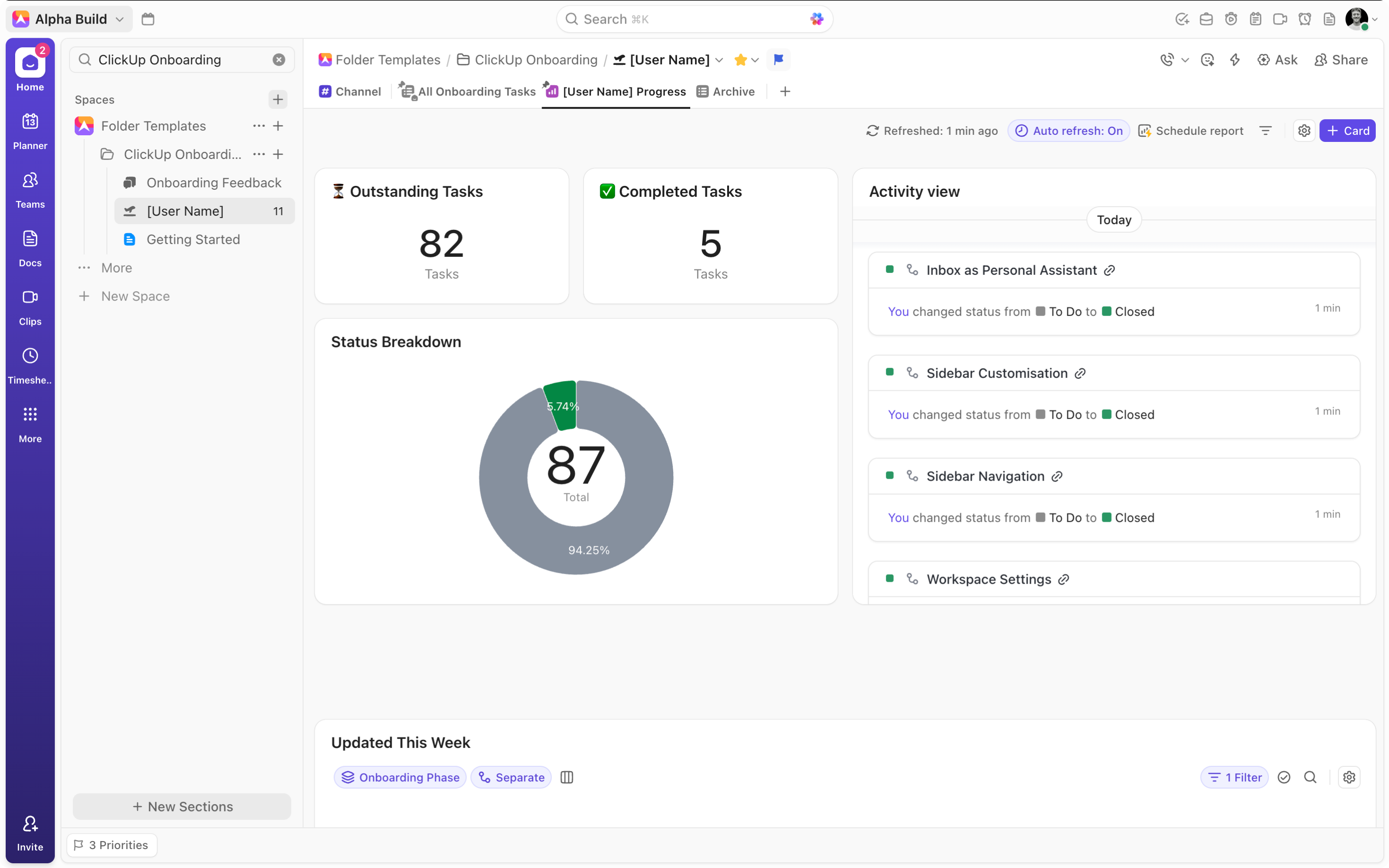
(Tip: On all of your dashboard cards filter out “Core Learning” and “Activity” task types to show only the subtasks – the items where the work actually happens)
This system ensures transparency, accountability, and friendly competition - powerful motivators for faster ClickUp onboarding. In addition, with this visibility you can identify lagging users and outline any problem areas.
Step 4: Gather Feedback & Continuously Improve
“[User Name]” list is designed to guide users through ClickUp’s range of features. But how do we ensure that each of our employees has adequately grasped all of the tools and understand how to implement them practically?
The answer is simple, feedback.
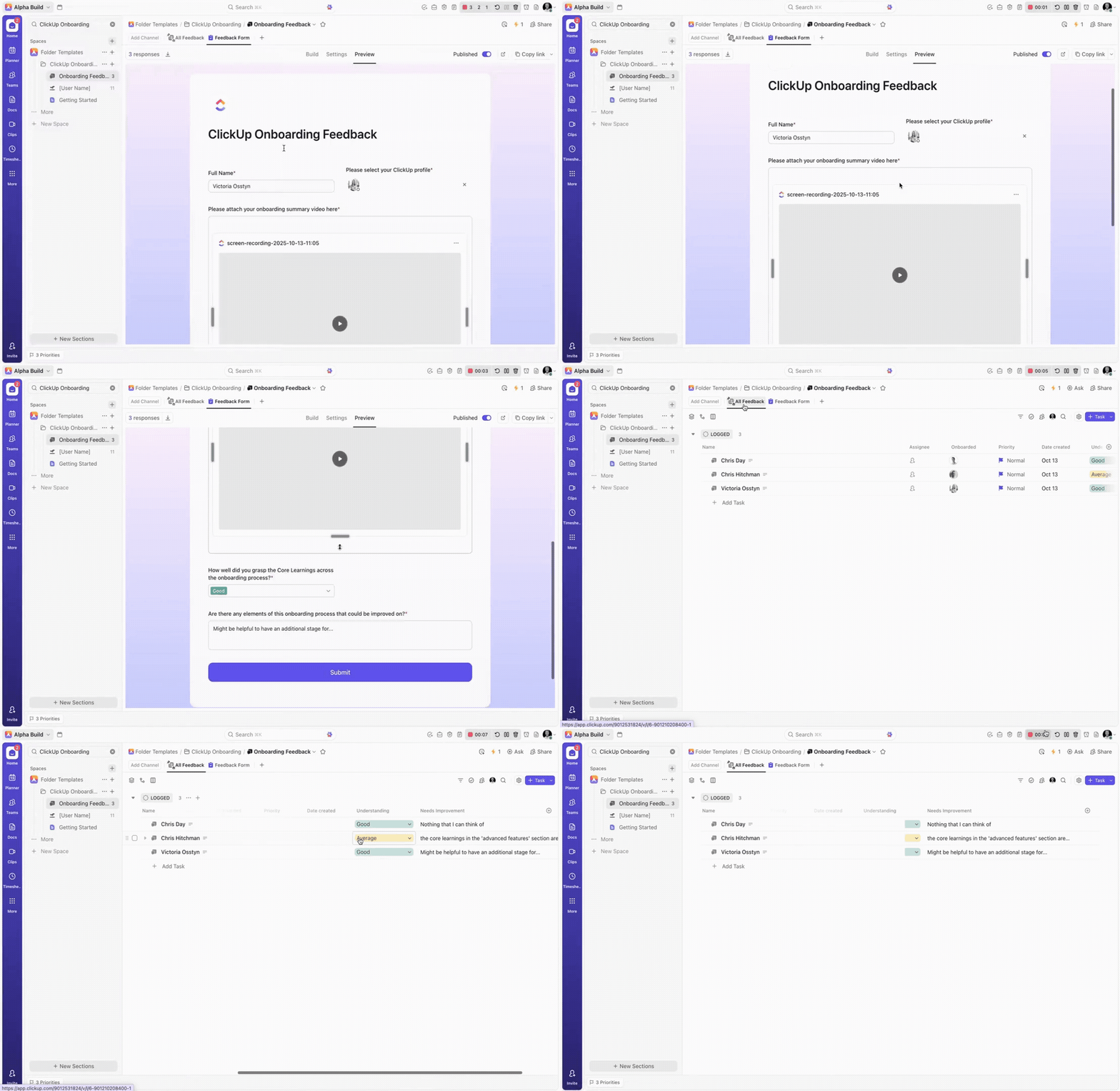
Create an “Onboarding Feedback” list within your “ClickUp Onboarding” folder, and link it to a simple feedback form to capture onboarding feedback from each of your users. Include questions such as:
-
How confident do you feel using ClickUp’s core features?
-
What could improve the onboarding experience?
These insights will help you refine your ClickUp onboarding checklist and training over time, making each iteration more effective.
Additional Steps
Beyond the four core steps, consider these productivity tool adoption best practices:
-
Block Out Learning Time. Allow employees to dedicate specific hours to ClickUp onboarding. Make this exercise mandatory, ensuring that team members don’t feel guilty for prioritizing a comprehensive understanding of ClickUp across your organization.
-
Nominate a ClickUp Champion. In order to stay up-to-date with ClickUp’s consistent feature rollout, identify an especially adept ClickUp user and task them with the role of staying informed on any updates to the platform. Moreover, schedule quarterly, bi-annual or annual meetings where said team member can run the rest of your organization through any important updates to the system.
-
Document Everything. Add Standard Operating Procedures (SOPs) to every major workflow so new users have context from day one. This will greatly assist new users as they familiarize themselves with the platform, reducing the added stress of trying to come to grips with processes while learning how to work in a new tool.
Successful adoption is the key to unlocking ClickUp’s full potential. Without it, even the most advanced work management tools can’t deliver their promised efficiency.
By following this structure - building an intuitive workspace, creating a structured ClickUp onboarding process, tracking progress with dashboards, and gathering continuous feedback - you’ll empower your team to use ClickUp to its fullest.