

In today’s fast-paced digital landscape, web development agencies face the dual challenge of delivering high-quality results while keeping clients engaged and satisfied throughout the project lifecycle. Traditional project management systems often fall short, struggling to keep up with shifting client needs, evolving requirements, and the demand for transparency.
This is where Agile Scrum Framework excels.
Built on principles of adaptability, collaboration, and continuous improvement, Agile Scrum breaks work into short, focused sprints that prioritize regular feedback and iteration. Each sprint creates a natural checkpoint for clients to review progress, refine priorities, and adjust requirements as their project vision evolves.
In this guide, we’ll show you how to integrate Agile Scrum with client-centric management in ClickUp - building on the foundation established in our Web Development Client Management Template to create a system that leverages the power of Agile Scrum for exceptional client management and fulfilment results.
Architecture: Merge Agile Scrum with Client-Centric Management
In our Web Development Client Management guide we outline the foundational architecture for managing multiple clients in ClickUp — from onboarding to maintenance. This structure relies on dedicated client folders, an overarching “All Clients” folder, and high-level dashboards for global visibility. By combining client folders with ClickUp automations, teams can centralize all client related workflows, such as meetings and support tickets. Tasks from each client’s workspace can feed into shared lists like “All Meetings” or “All Support Tickets”, creating unified, real-time insights across all accounts.
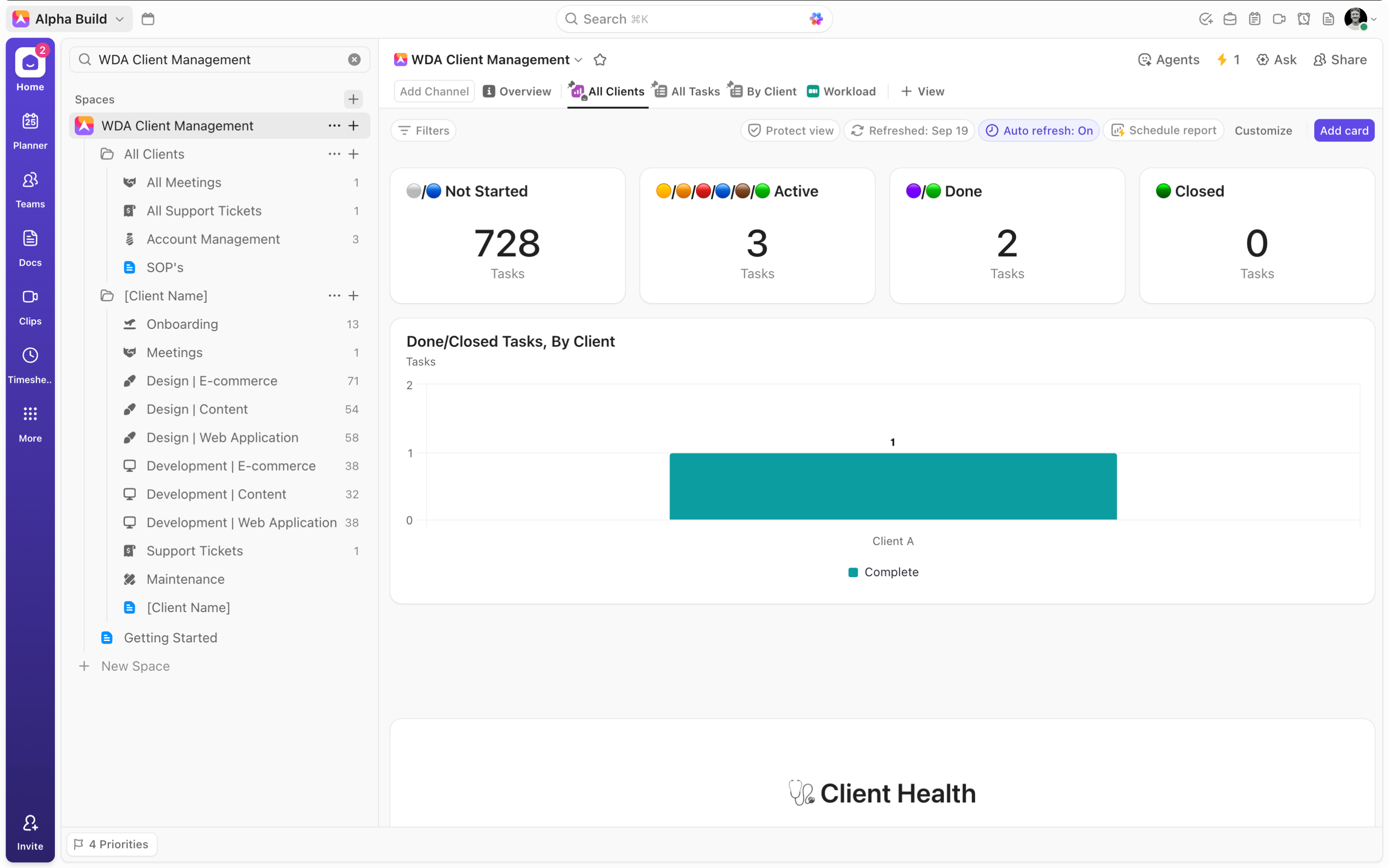
Building on this powerful system, we now look at how to include the Agile Scrum framework into our client management system - enhancing project delivery without complicating your setup.
The key is simplicity. Focus on Scrum’s core features: ceremonies, backlog, and sprints. These three elements form the foundation of any Agile Scrum framework, and integrating them effectively in ClickUp will give your agency both granular client visibility and high-level oversight.
Backlogs and Sprints: Balancing Granular Visibility with Global Oversight
To do this, consider first creating local “Backlog” and “Current Sprint” lists in your “[Client Name]” folder template.
-
Fit your “Backlog” list with an “Intake Form”, to capture client-specific backlog items. Include fields like, “Issue Type”, “T-shirt Size”, and “Time-frame”, for added context.
-
Combine a “Backlog” checkbox with sophisticated automations in your relevant client workflow lists, so any client task can easily be added to the backlog.
-
Add a custom “Backlog Status” with stages like Logged, Grooming, Groomed, and Current Sprint, then employ automations to ensure that tasks are added to the “Current Sprint”: list on “Current Sprint” for an intuitive flow.
_1769692538078.gif)
Your “Current Sprint” list will act as the active location for client-specific sprint tasks. As a result of our decision to use the custom “Backlog Status” in the “Backlog” list, tasks will enter the “Current Sprint” list in the “To Do” status, allowing you to move items through ClickUp’s native statuses as you move tasks closer to completion. Carry over important custom fields (like Issue Type, Time-frame, Sprint Points etc.) for continuity from your backlog, and clarity on your different sprint items. Then, build a ‘Sprint Reporting’ dashboard to monitor performance, track sprint progress, and identify opportunities for continuous improvement.
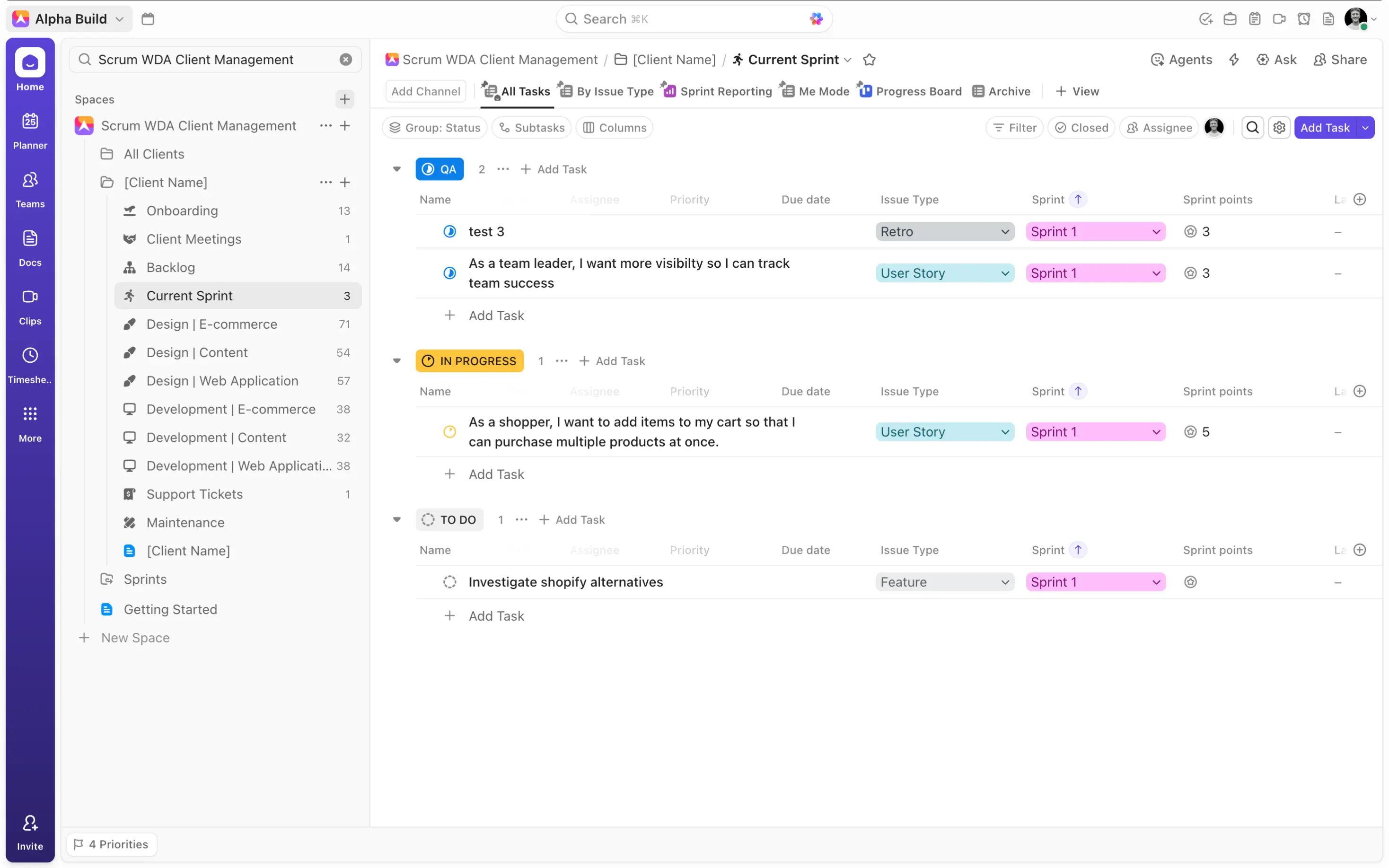
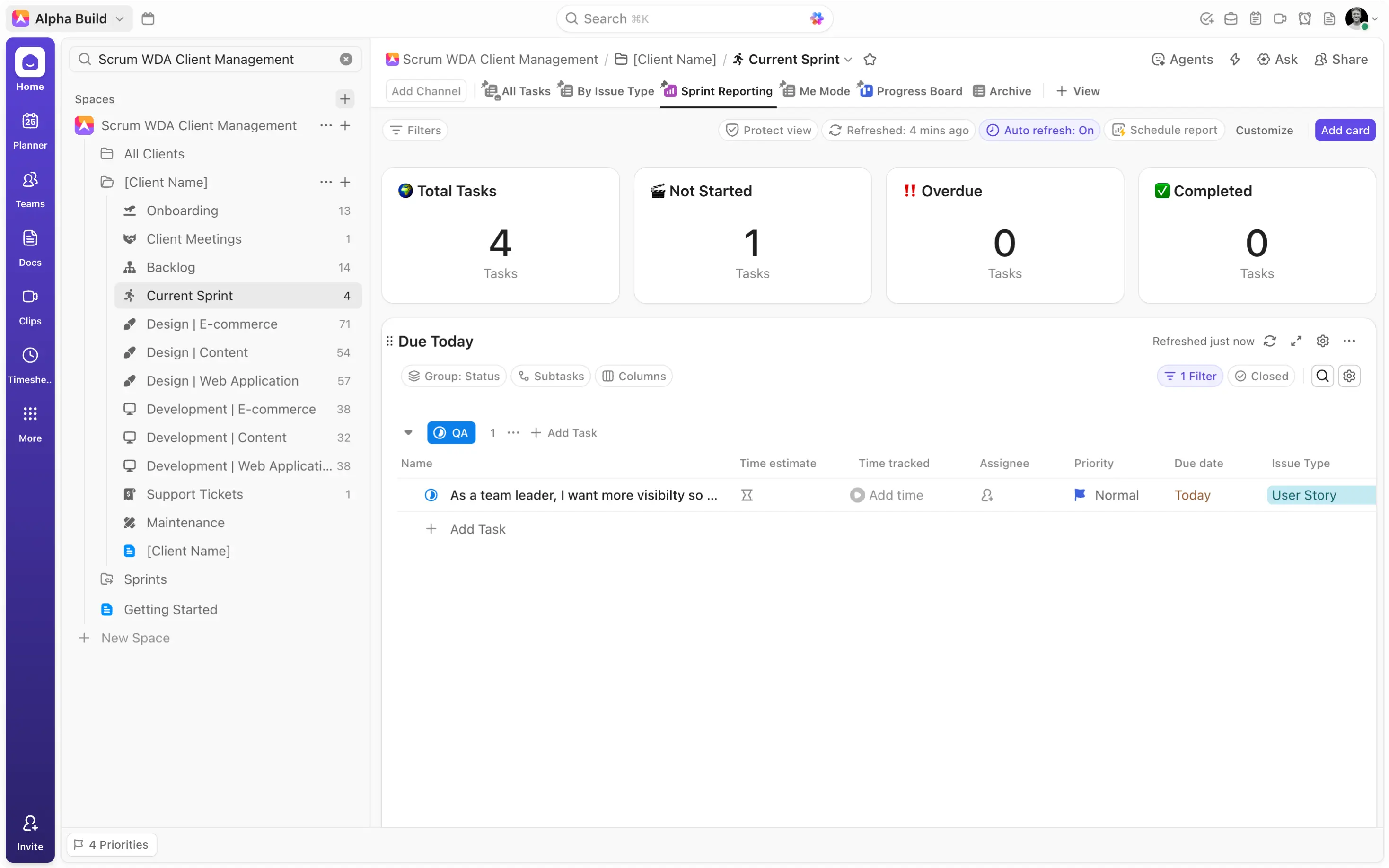
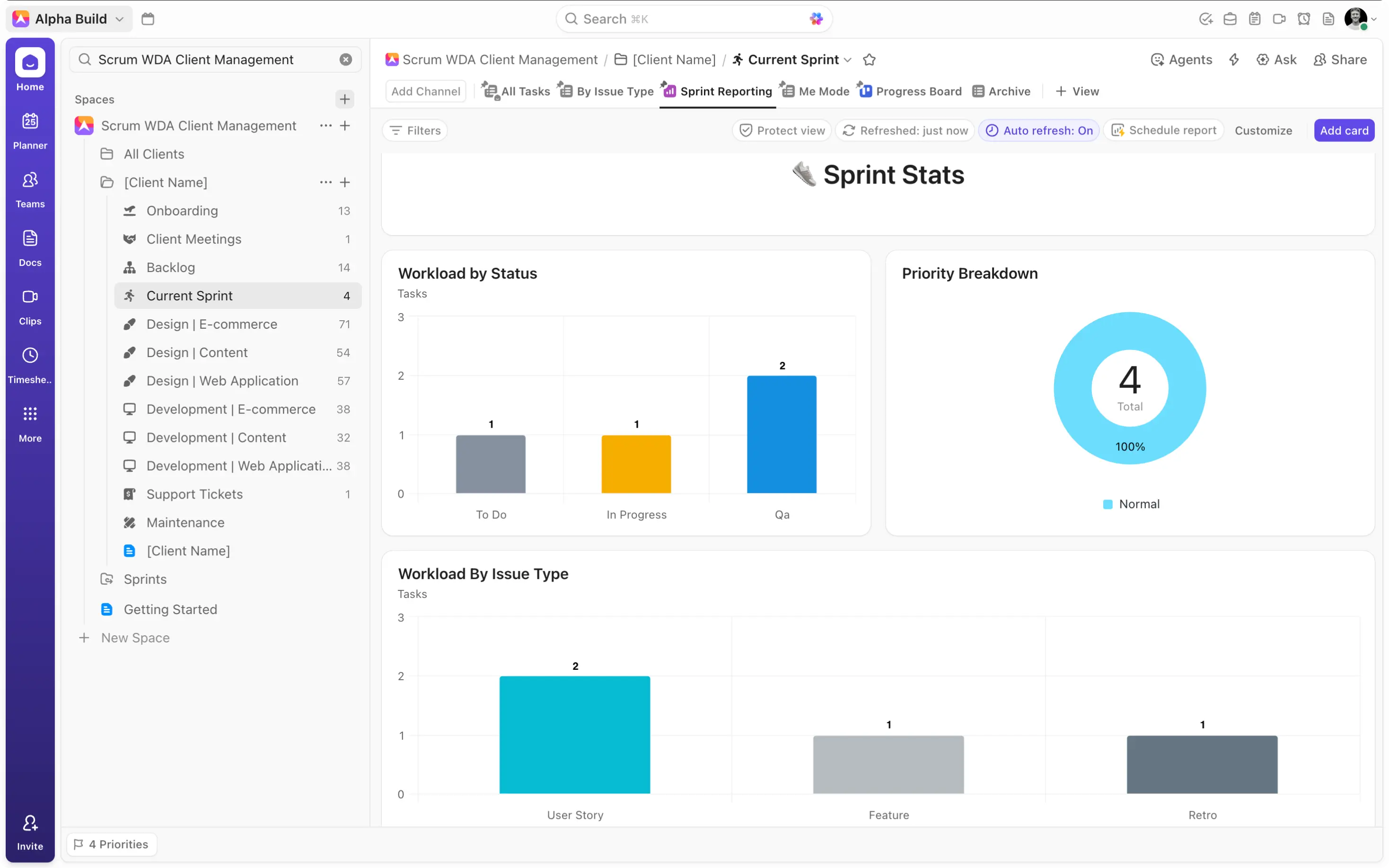
By including Scrum components in your individual client folders, you create a structure that fosters the kind of client focus and accountability needed to effectively nurture your clients. However, managing multiple client sprints in ClickUp can become complex if each client operates in isolation. Separate sprints can fragment your team’s focus, stretch resources thin, and reduce agility.
To counter this, merge client-specific backlog and current sprint tasks into global lists. This will allow you to isolate individual clients, zeroing into their backlog and sprints respectively, while running global backlog lists and sprints which allow you to optimize resource allocation, centralize planning, and remain flexible. To do this, borrow from the structure outlined in the Web Development Client Management guide.
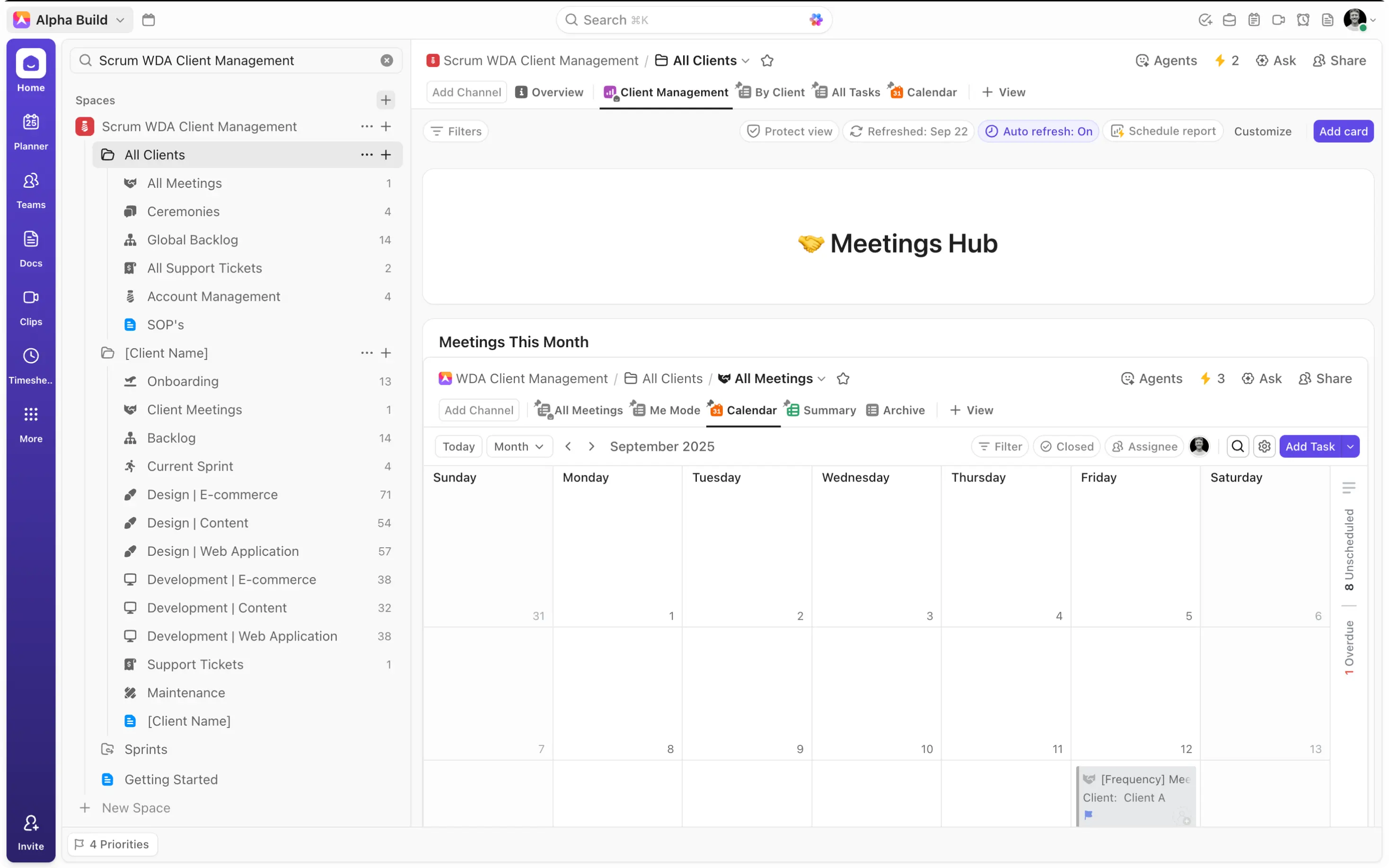
Building a Global Agile Scrum Architecture
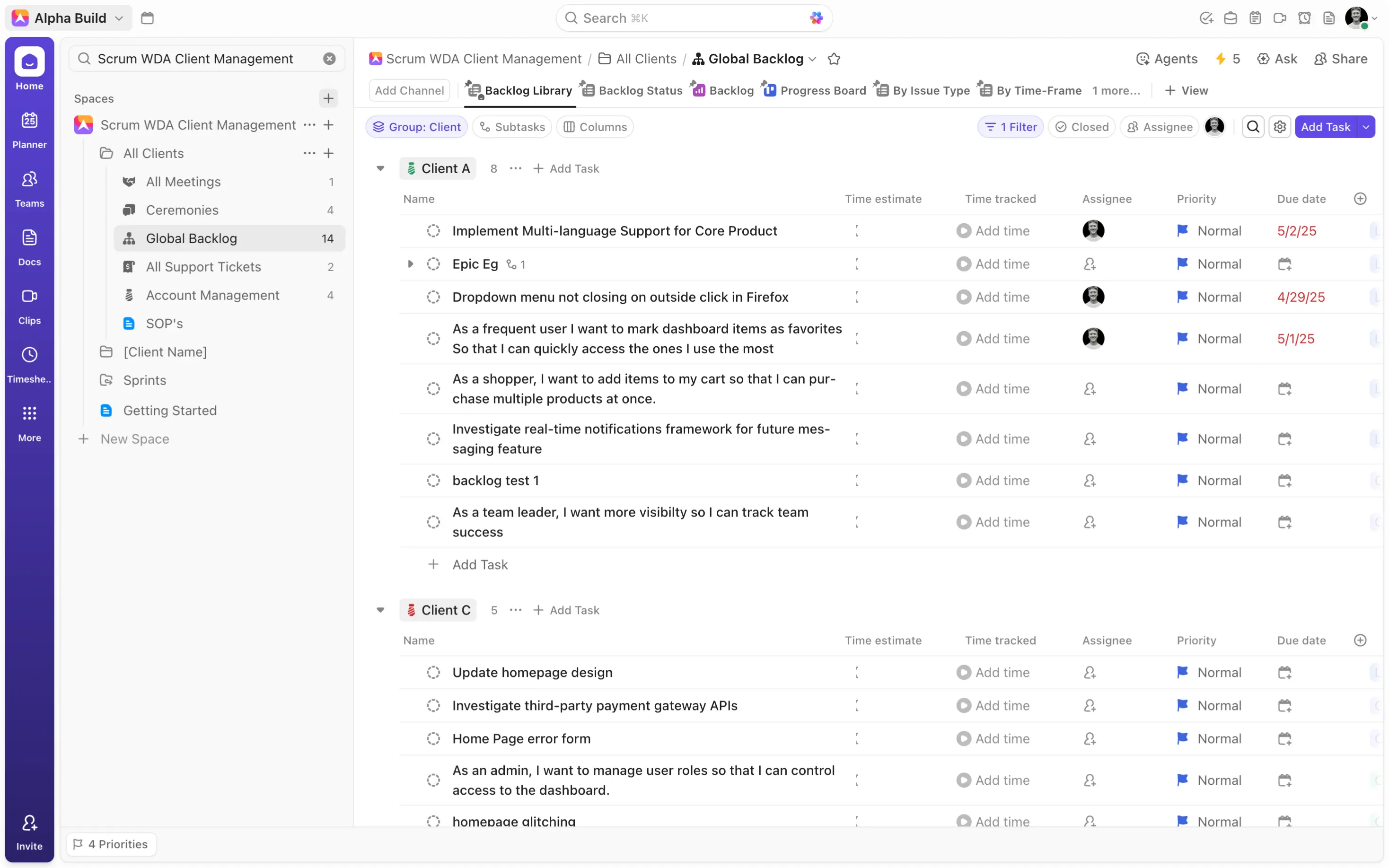
First, create a “Global Backlog” list in your “All Clients” folder by duplicating the “Backlog” list in your “[Client Name]” folder. Consider retaining the “Intake Form” to capture any general backlog items that relate to broader operations rather than individual clients.
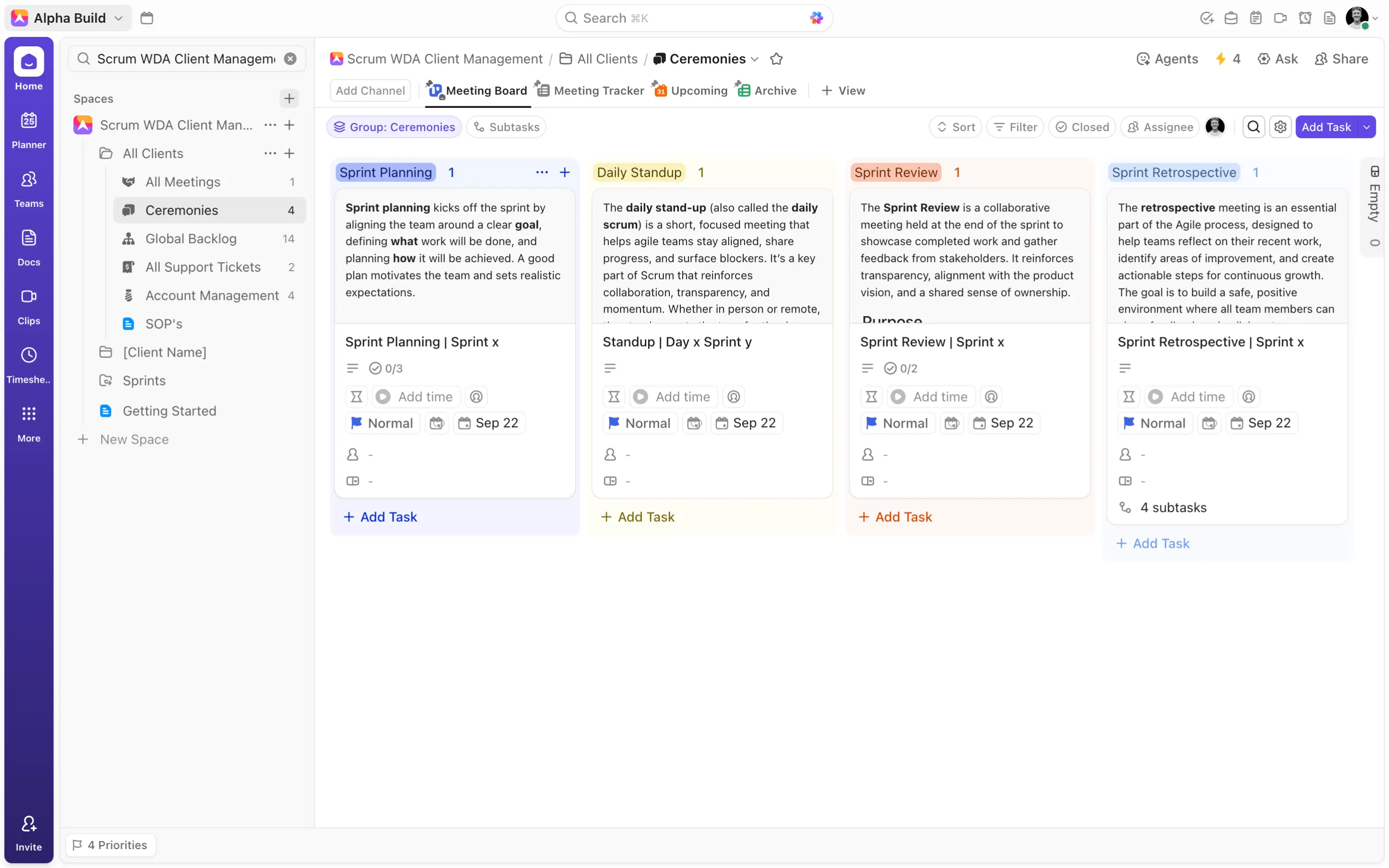
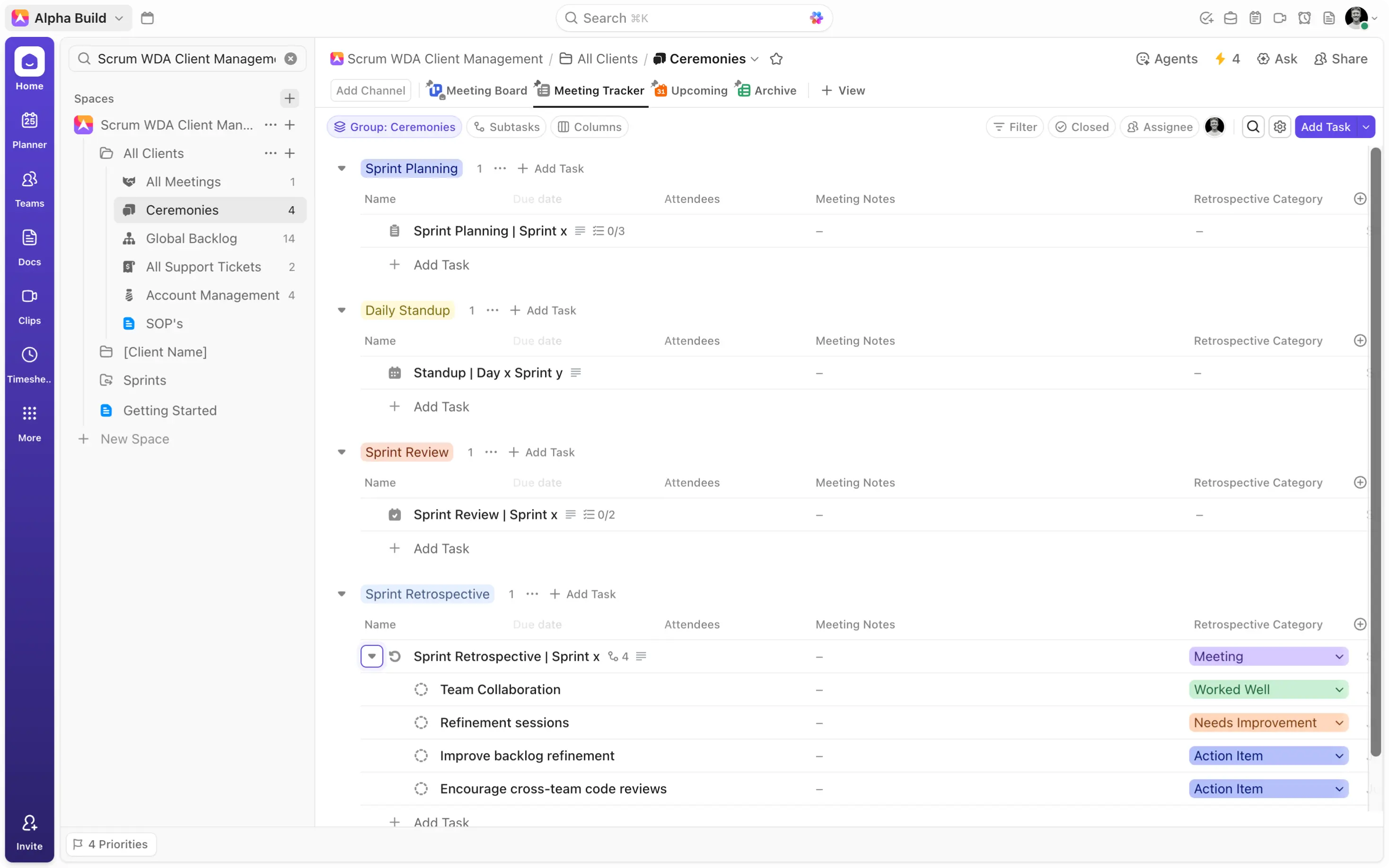
The next step is to create a “Ceremonies” list in the same folder, where you’ll track, manage, and implement all of your Agile Scrum ceremonies.
-
Include Sprint Planning, Daily Standup, Sprint Review, and Sprint Retrospective Tasks to facilitate each of the different sprint meetings.
-
Fit each of these with detailed descriptions outlining the purpose and key components of each.
-
Use recurring due dates to reflect the unique cadences of each of your ceremonies.
-
To visually distinguish between each of these meetings, create a ‘Ceremonies’ dropdown and attach the ceremony type to the corresponding ceremony task.
-
Include additional ‘Attendees’ and ‘Meeting Notes’ fields to capture vital meeting information.
-
For a sophisticated feedback loop, consider scoping out your retrospective outcomes (i.e. things you did well, areas of improvement, and action items) as subtasks on your Sprint Retrospective meeting task.
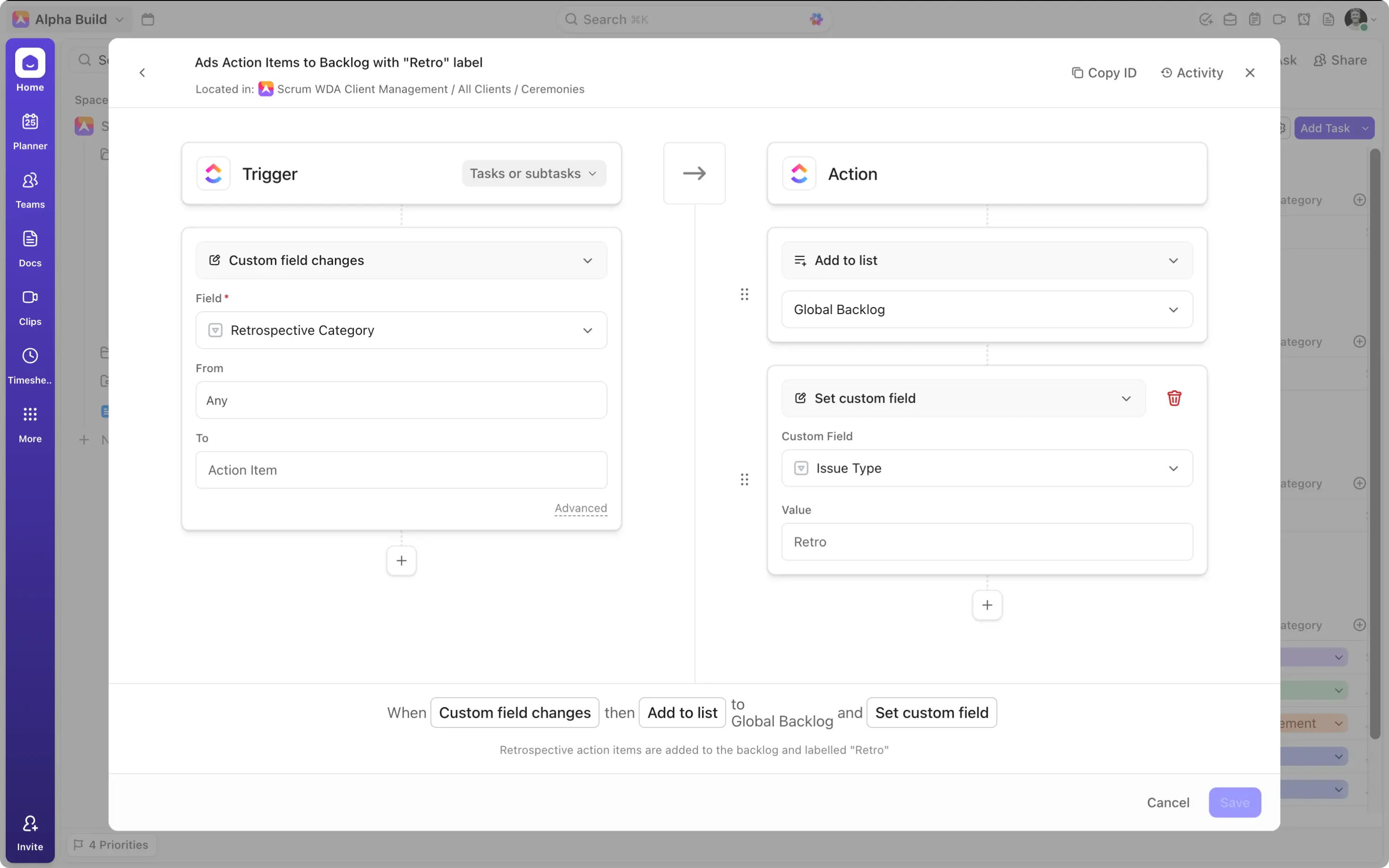
You can then combine a ‘Retrospective Category’ dropdown field with automations to ensure that any subtasks identified as ‘Action Items’ are automatically added to the ‘Global Backlog’.
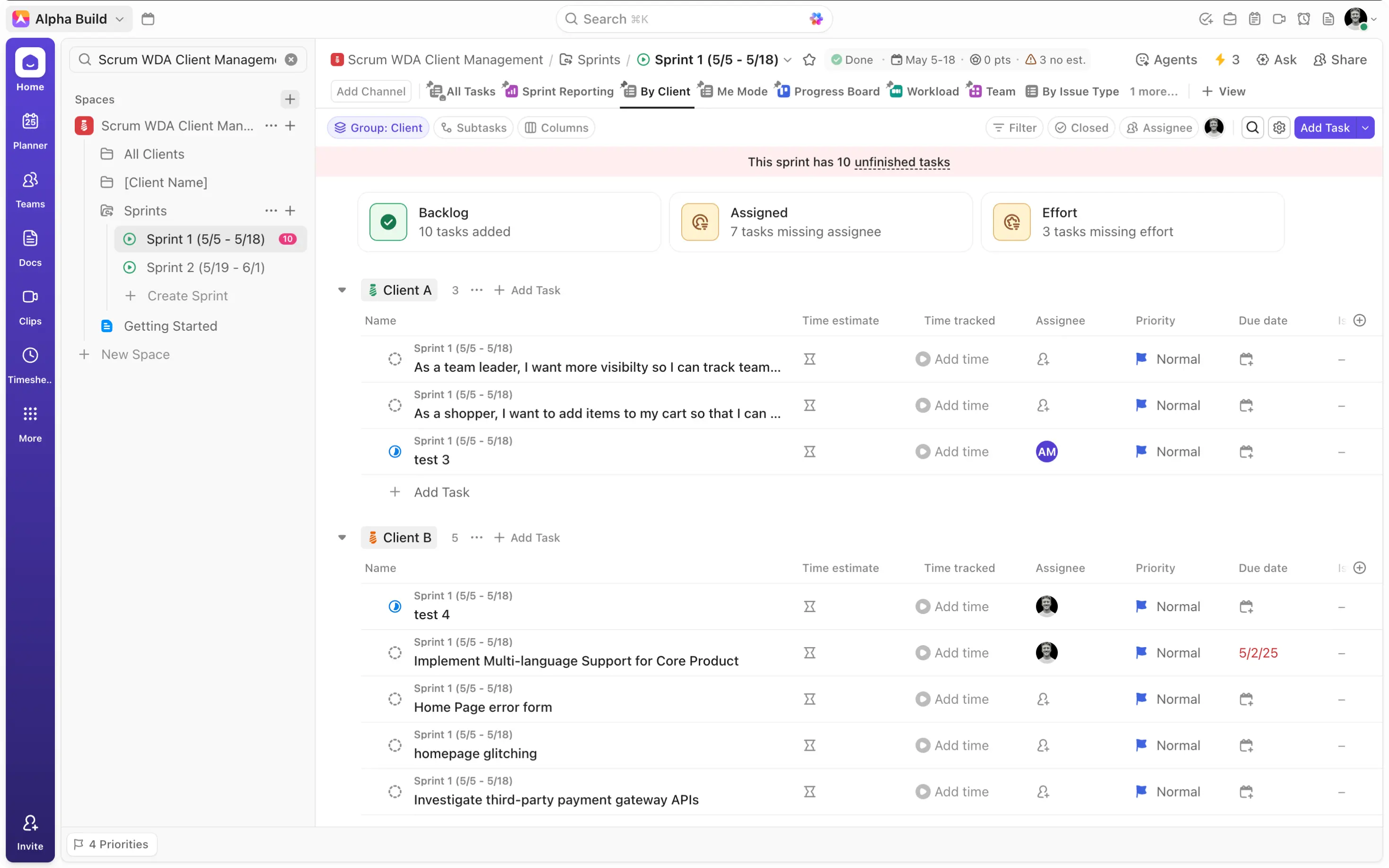
Finally, leverage ClickUp’s native sprint features by creating a dedicated ‘Sprints’ folder to facilitate all of your individual sprints. Use the ‘add to current sprint’ automation option on your ‘Global Backlog’ to add all backlog items to the current sprint on ‘Current Sprint’. These sprint lists will in turn serve as global sprints, combining sprint items from across all of your individual clients in a seamless flow.
Optimizing Sprint Lists for Performance
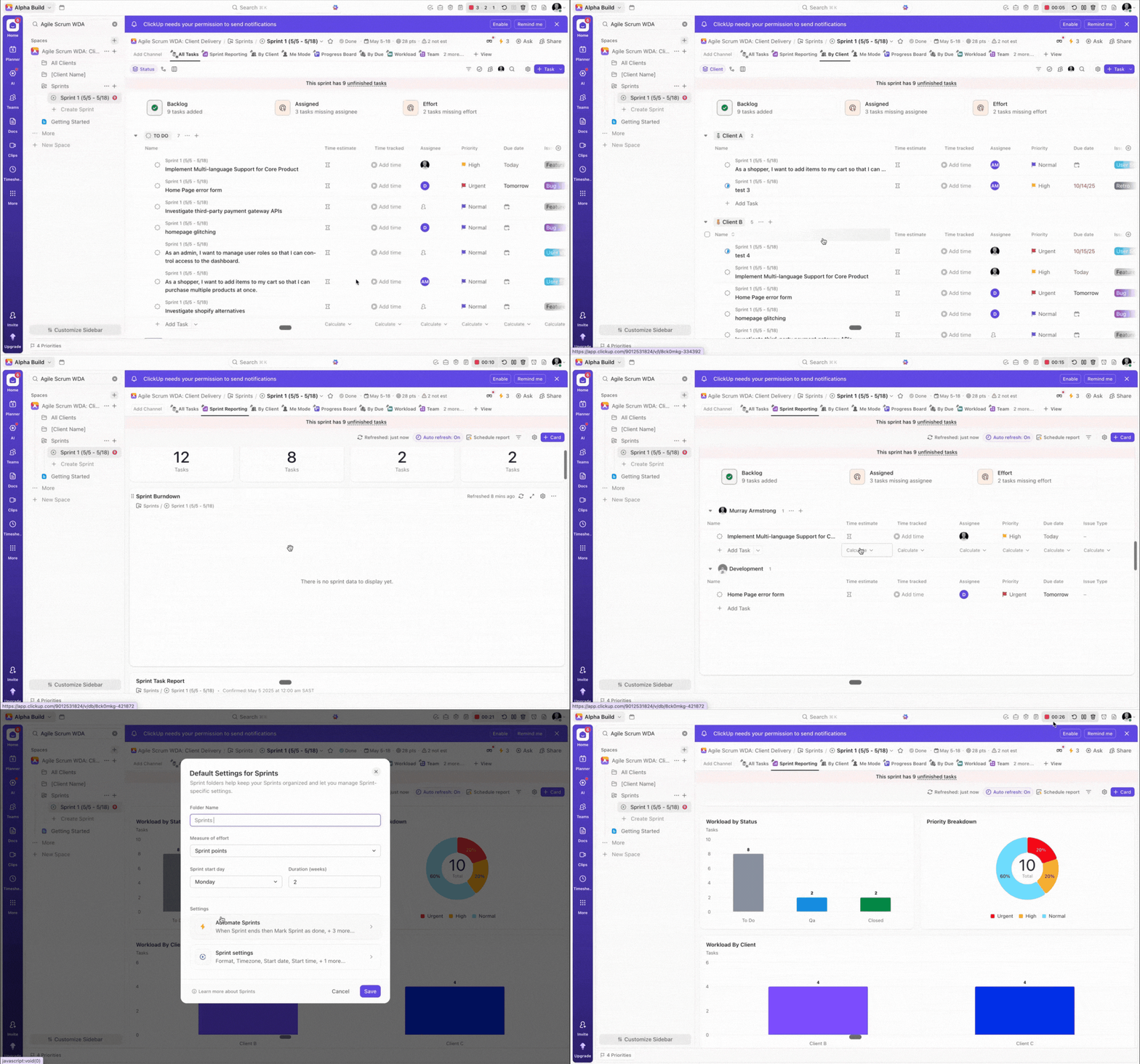
Sprint folders have a number of powerful features that help you to effectively run sprints. Not only do they show you the number of tasks - added from your backlog, missing an assignee, and missing an estimation of effort; they also enable you to automate the following: mark sprints as done on the end date, create new sprints when a previous sprint ends, and add incomplete tasks to the next sprint.
One of the more powerful features not yet mentioned, is the ability to automatically leverage list templates for each of your new sprints. With this feature you can create a fully optimized sprint list, which you can then save as a template and include in your “Sprints” folder settings, to ensure it is utilized for each of your sprints.
Enhance your sprint lists by adding powerful views and dashboards:
-
Leverage sprint cards like burnup and burndown charts to visualize spring progress
-
Sprint task reports to track workload and due dates
-
Task list cards grouped “By Client” for task management and clear accountability “Board” and “Workload” views for dynamic sprint visualization
-
Create an additional “Sprints” dropdown field with an option that corresponds with each of your individual sprints.
Create automations on your template list to ensure that each of the tasks created in, added, or moved to the sprint list inherit the relevant sprint label, allowing you to develop powerful folder level dashboards that compare performance across all of your sprints.
Using Client Portals for Sprint Reviews
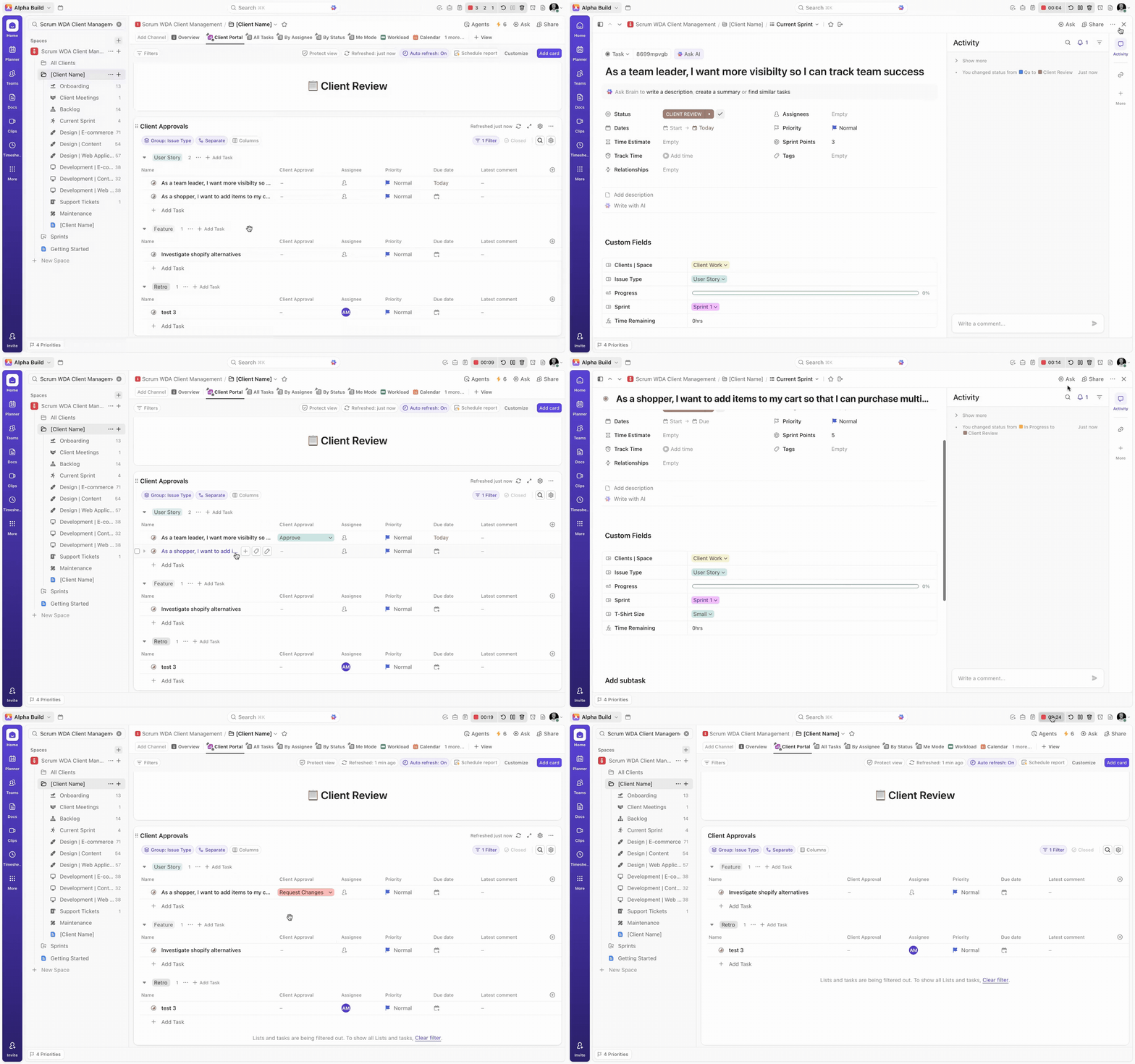
One of the greatest strengths of Agile Scrum is its emphasis on transparency and collaboration. Each sprint provides clients with a clear view of deliverables and progress. The sophisticated client portals outlined in Web Development Client Management are perfectly equipped to streamline this review process. With a dedicated “Client Review” task list, teams can move all relevant items into the “Client Review” status after each sprint, providing clients with instant visibility on the list of items under review. Your clients can use the “Client Approval” field to approve or request changes on any review items.
Integrating Agile Scrum with client management in ClickUp empowers web development agencies to work smarter, stay organized, and maintain strong client relationships.
By combining granular client management workflows with global Agile Scrum operations, you’ll create a dual system that:
-
Maintains client focus while optimizing resources
-
Centralizes planning and sprint management
-
Improves transparency through client portals
-
Streamlines sprint ceremonies and reviews
The result? A scalable, ClickUp Agile Scrum setup that aligns your team, your clients, and your deliverables — all within one efficient ecosystem.